eSIM 14 Pro Max: Setup, Use, and What to Know

eSIM technology is increasingly becoming the preferred choice for many iPhone users thanks to its convenience and flexibility compared with physical SIM cards. With just a few simple setup steps, you can activate mobile network service directly on the device without having to replace a SIM card. In this article, SimPM will show you how to check and set up eSIM on iPhone 14 Pro Max, making it easier to stay connected while using your phone or traveling internationally.
What is eSIM 14 Pro Max? Does the iPhone 14 Pro Max support eSIM?
eSIM 14 Pro Max is an electronic SIM technology built directly into the iPhone 14 Pro Max instead of using a traditional physical SIM card. Users only need to scan a QR code or enter carrier details to activate and use mobile service.
On iPhone 14 Pro Max, users can easily manage and set up eSIM 14 Pro Max directly in the device settings. As a result, activating or changing a network plan becomes quick without needing to remove or insert a physical SIM card. This makes mobile data use, calls, and texting on iPhone 14 Pro Max more flexible and convenient in many different situations.
How to check whether iPhone 14 Pro Max has eSIM
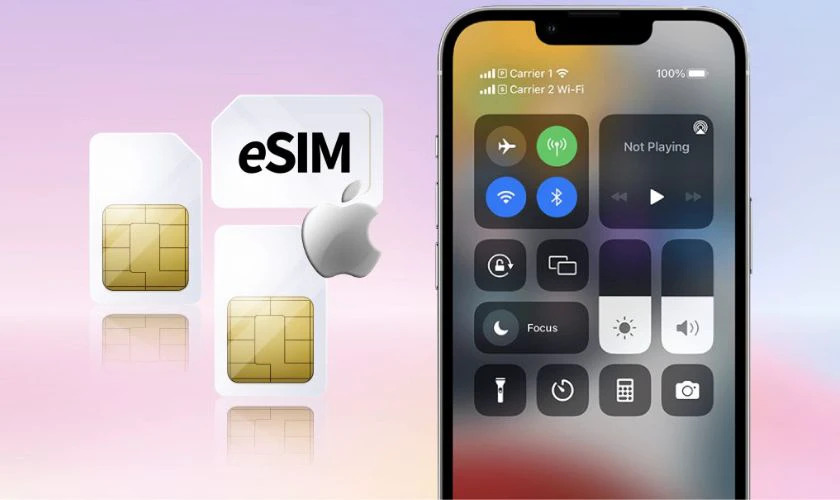
To find out whether iPhone 14 Pro Max supports eSIM, you can check in a few ways below. Checking first will help you make sure the phone is compatible with eSIM 14 Pro Max before installing or buying an eSIM plan. In addition, this step also helps determine whether the device is an unlocked international model or carrier-locked. Below are some common ways iPhone users often check.
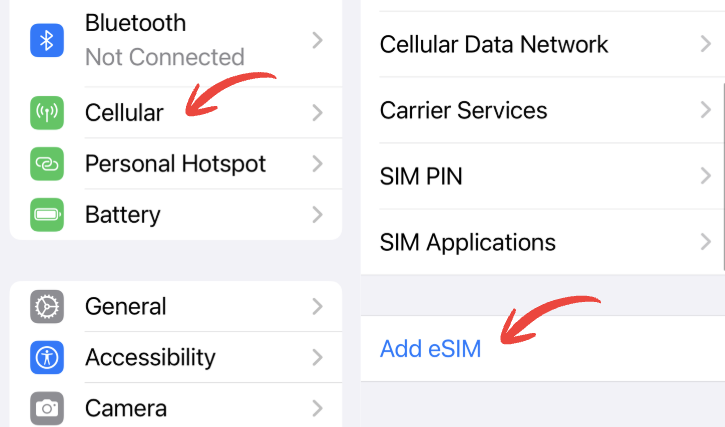
Check in Settings:
- Go to Settings → Cellular, and if you see the option Add eSIM then the iPhone supports eSIM.
- If you do not see it, your device may not support eSIM, or it may be a region-limited version (for example, the China version), or you may need to update iOS to a newer version.
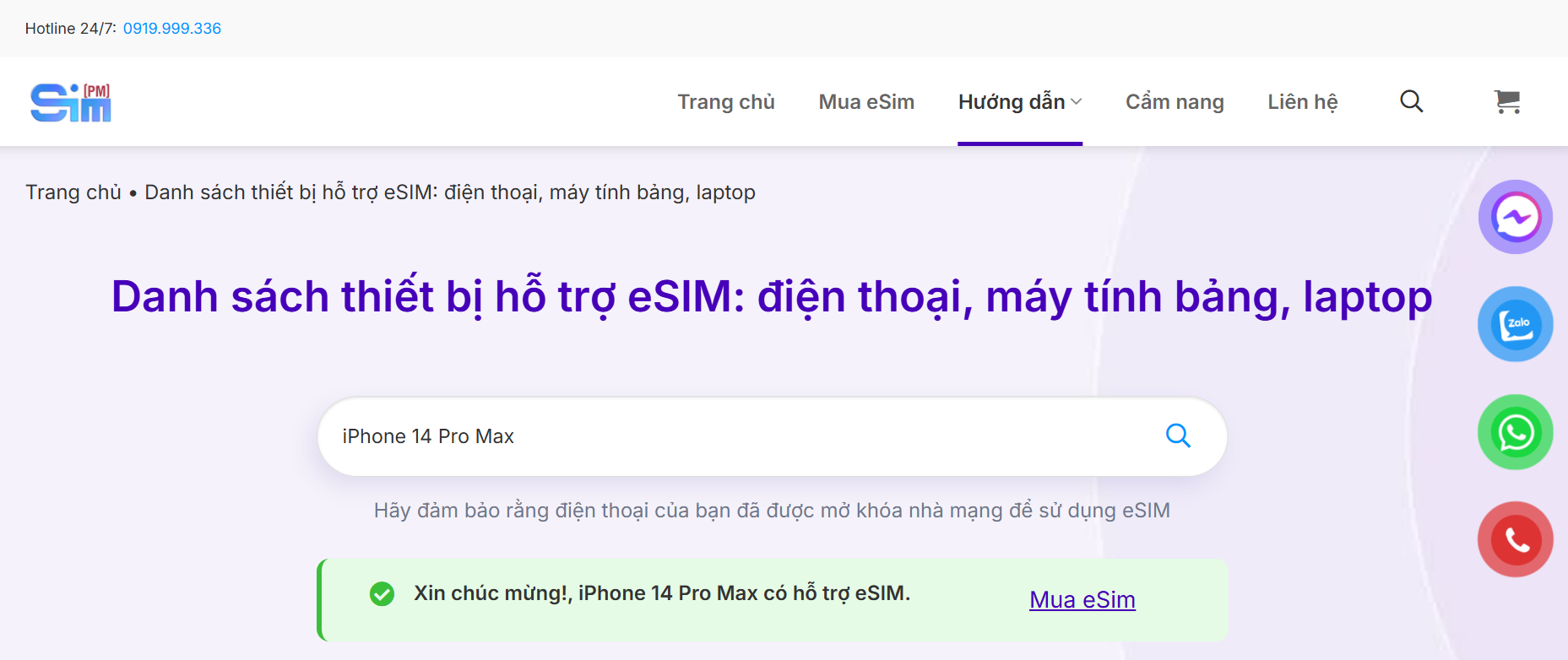
Check information on SimPM:
You can also check whether iPhone 14 Pro Max supports eSIM by looking it up on SimPM’s eSIM Supported Devices List page. Just enter iPhone 14 Pro Max, and the system will help you determine whether the device is compatible with eSIM and suggest suitable eSIM plans. This is quite convenient when you are preparing to buy an eSIM for use or travel.
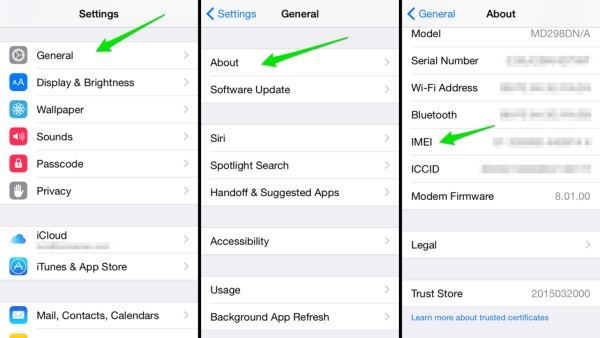
Check by IMEI code:
- Go to Settings → General → About, find the item IMEI
- If the iPhone shows IMEI (Digital SIM) or multiple IMEI numbers, the device supports eSIM. This is a common way to check on models such as iPhone 14 Pro Max.
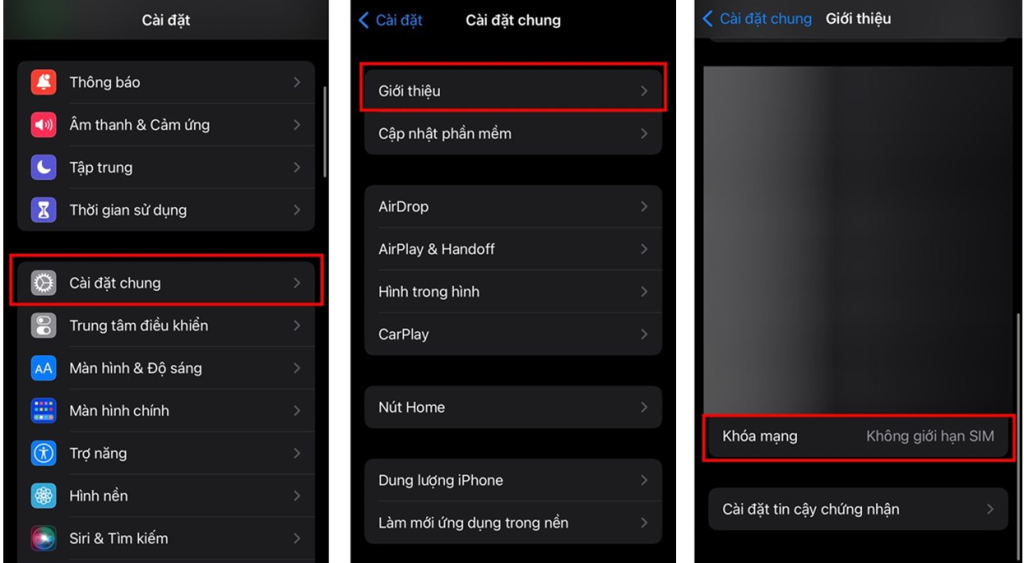
Check whether the iPhone is locked:
- Go to Settings → General → About, find the item Carrier Lock
- If it shows No SIM restrictions, it means the iPhone is an international model and can use eSIMs from multiple carriers.
How to set up eSIM 14 Pro Max
eSIM installation14Pro Max is quite simple; depending on the carrier or eSIM provider, you can install it using a QR code or by entering the details manually. Below are the instructions.2how to install an eSIM14Pro Max details.
Set up eSIM with QR code
- Go to Settings → Cellular → Add eSIM → Use QR Code
- Scan the QR code provided by the carrier
- Confirm to complete setup
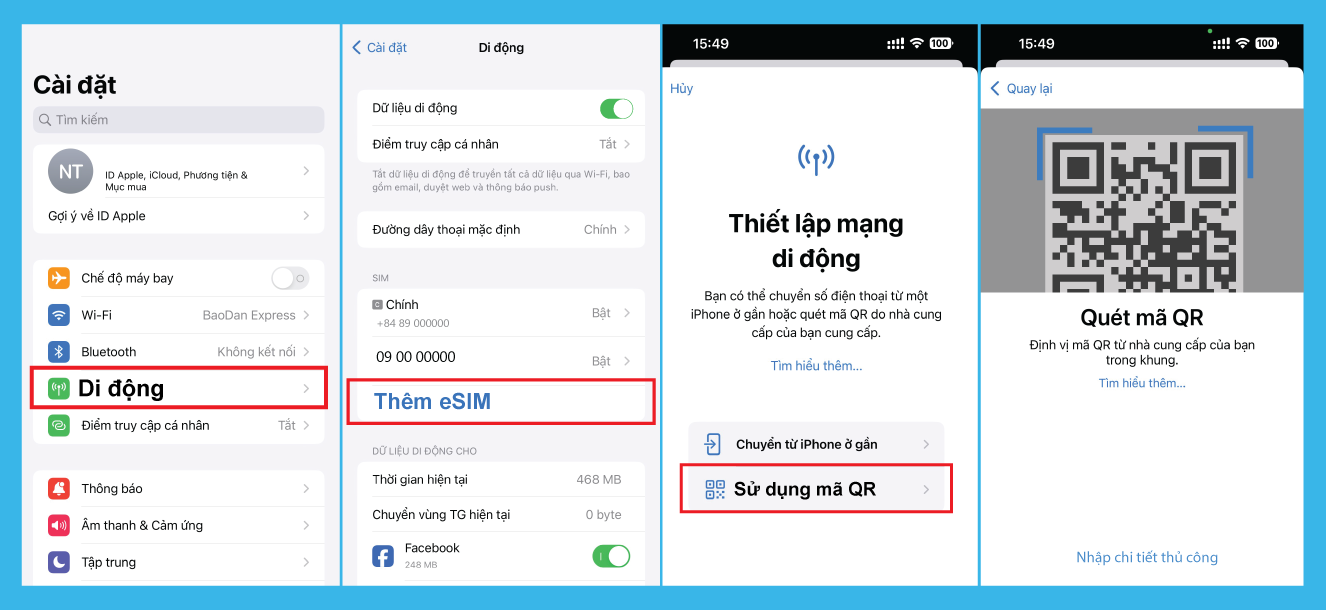
After completion, the eSIM will be activated and you can use it right away for calls, texting, or Internet access. With eSIM 14 Pro Max, setup takes only a few minutes and does not require removing or inserting a physical SIM card. This is especially convenient when you need to switch carriers, use an additional data plan, or activate a travel eSIM when going abroad.
Set up eSIM manually on iPhone
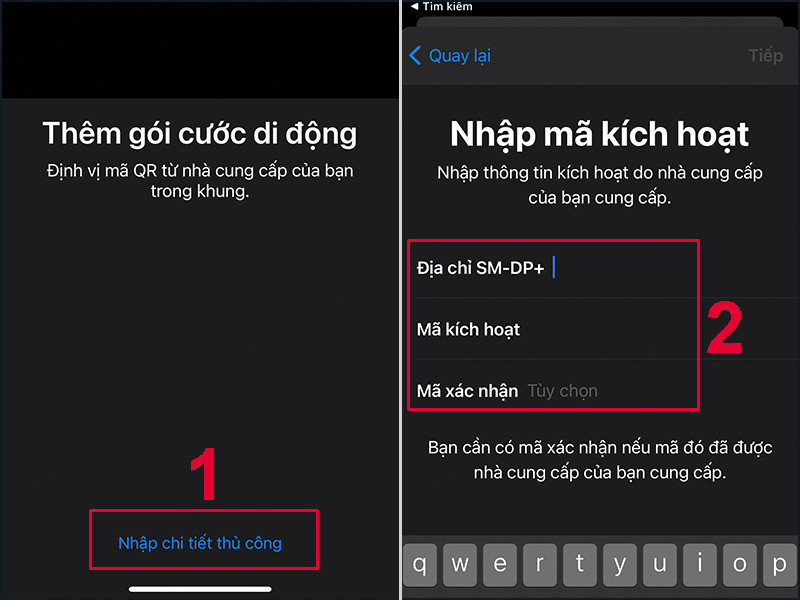
If you do not have a QR code, you can enter the eSIM information manually.
- Go to Settings → Cellular → Add eSIM → Enter Details Manually
- Fill in the information provided by the carrier
This method is usually used when the carrier sends eSIM details by email or through an app. After entering all the information and confirming it, the eSIM will be activated on iPhone 14 Pro Max and you can use mobile network service as usual.
Activate eSIM after setup
After setting up eSIM 14 Pro Max, you need to activate the plan to use it. Once activation is complete, eSIM 14 Pro Max will work normally and you can use mobile data, make calls, or access the Internet directly on the iPhone.
- Choose eSIM as the primary SIM for mobile data: After setting up eSIM 14 Pro Max, you can set eSIM as the main mobile data source to use the Internet, access apps, and connect to the network on iPhone.
- Choose the default SIM for calls: In the settings section, you can also choose eSIM as the default SIM for making calls or sending messages, making communication more convenient.
- Name the eSIM for easier management: You can name eSIM 14 Pro Max “Work” or “Travel” to make it easier to distinguish and manage while using it.
Read more: Quick and easy guide to deleting eSIM on your phone
Things to keep in mind when using eSIM 14 Pro Max
When using eSIM 14 Pro Max, you should learn some basic information in advance to ensure the setup and usage process goes smoothly. Understanding how eSIM works also helps you avoid common errors when activating or switching plans. Below are a few important notes when using eSIM 14 Pro Max:
- eSIM does not need to be removed and inserted like a physical SIM: Because it is integrated directly into the device, users do not need to remove or insert a SIM card as before. This makes switching carriers or activating a new data plan faster and more convenient.
- You may need to contact the carrier when changing phones: When moving to a new device, you may need to contact the carrier to transfer the eSIM to another phone. Some carriers will reissue a QR code or provide instructions to reactivate the eSIM on the new device.
- Useful when traveling internationally: eSIM is especially suitable for people who travel frequently or go abroad. You can buy and activate a data plan online quickly without having to find a physical SIM card locally.
- Remember to save the QR code or activation information: After purchasing an eSIM, you should save the QR code or activation details so you can reinstall it when needed, for example when restoring the device or switching to another device.
- A stable Internet connection is required when setting up eSIM: During eSIM activation, the phone needs a stable Internet connection to download information from the carrier. This helps the setup process run quickly and minimizes errors.
- Not every phone supports eSIM: Although eSIM is becoming more and more popular, not all devices support this technology. Therefore, before buying or setting up an eSIM, you should check whether your phone is compatible or not.
Where can I buy a reliable eSIM for iPhone 14 Pro Max?
There are now many eSIM providers for iPhone 14 Pro Max, helping users connect to the Internet quickly when going abroad. You can buy eSIM 14 Pro Max at SimPM – a travel eSIM platform with many suitable data plans for more than 200+ countries. After registering, you will receive a QR code by email within 5 minutes to install directly on your phone.

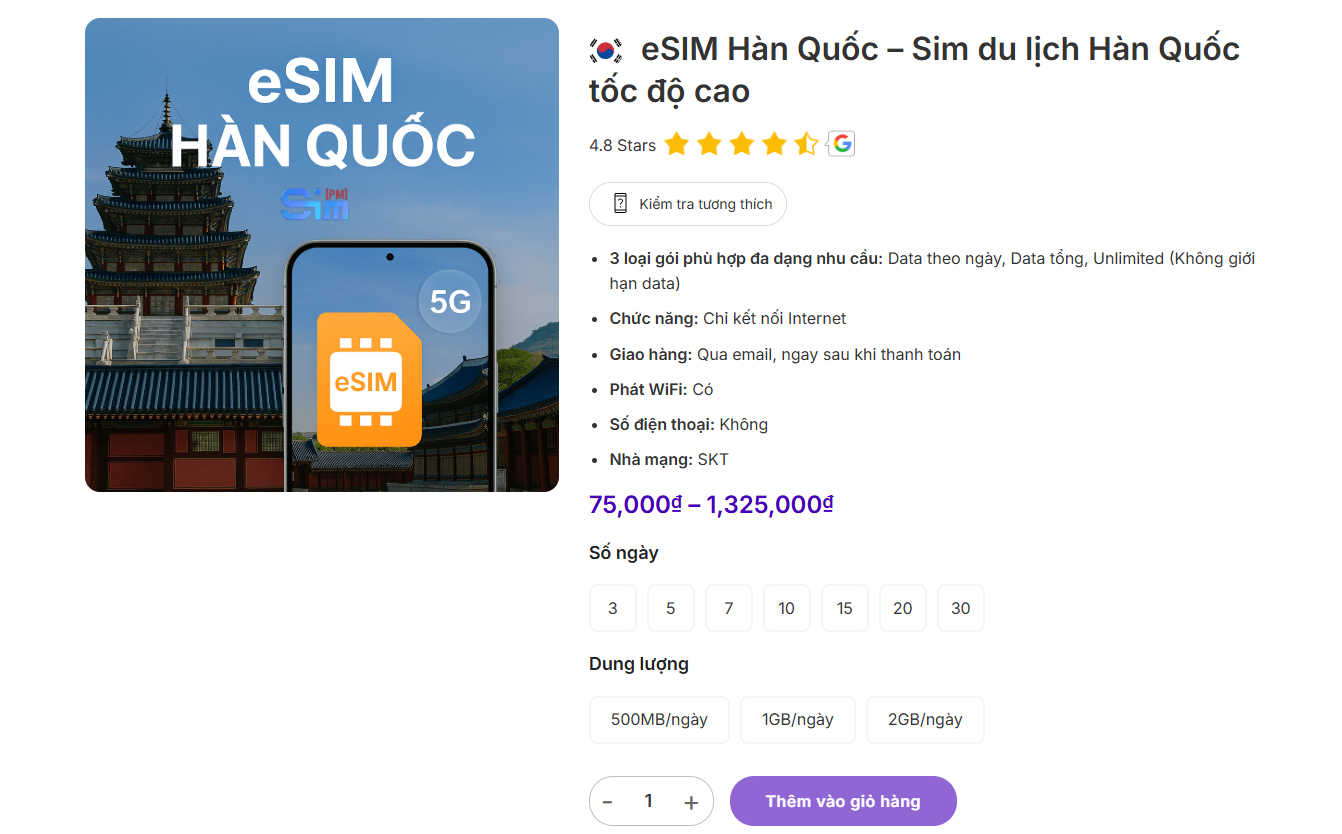
Users can quickly register to buy an eSIM via SimPM, the app on iOS and Android or the SimPM fanpage, which is very convenient for those using devices such as iPhone 14 Pro Max or other iPhone models that support eSIM. Using eSIM makes network connection simple, saves time, and fits the current technology trend on smartphones. You can also explore popular travel eSIM plans such as Thailand eSIM, Japan eSIM, Korea eSIM or China eSIM to choose the plan that suits your trip.

Overall, eSIM 14 Pro Max brings many conveniences to iPhone users thanks to fast setup, flexible use, and easy network connectivity in many different situations. Understanding the information above about eSIM 14 Pro Max will help you use the device more effectively, especially when you need to switch carriers or use mobile data while traveling.