eSIM Error: Causes, Signs, and Effective Fixes

eSIMs are becoming increasingly popular thanks to their convenience and quick activation, especially for people who travel frequently or go abroad. However, during use, many people run into eSIM errors such as not being able to install it, losing signal, or not being able to access the internet, disrupting the experience. SimPM will help you understand the causes, recognize common errors, and know how to fix them properly so your eSIM works stably from the start.
Common causes of eSIM errors
To fix an eSIM error effectively, the first and most important step is to identify the correct cause of the issue. In reality, eSIM errors usually do not come from just one factor, but can stem from the device, the user’s installation steps, the characteristics of the eSIM plan, or network conditions at the time of use. Below are the most common groups of causes that should be checked one by one.
Device-related causes
Not all phones support eSIM. Some devices only support eSIM in certain markets or are network-locked by foreign carriers. In addition, an outdated operating system can also cause eSIM to work unstably, making errors more likely during installation or use.
Common cases include:
- The device is not on the eSIM-supported list.
- The phone is network-locked and only accepts SIMs from one specific carrier.
- The operating system has not been updated, causing conflicts when activating the eSIM.
User setup causes
Besides the device factor, the user’s setup steps are also a very common cause of eSIM errors. In many cases, the eSIM does not work simply because it has not been configured correctly from the beginning.
Users may forget to turn on mobile data, have not selected the eSIM as the primary SIM for internet, or have not enabled data roaming when using a travel eSIM abroad. In addition, repeatedly resetting network settings without first identifying the cause can also make the eSIM less stable.
eSIM plan causes
Not every eSIM plan works the same way. Each eSIM plan is designed with its own usage area, data allowance, and validity period. If the eSIM plan has run out of data, expired, or does not support the country being used, the eSIM will not be able to access the internet even though it still shows signal.
In addition, some travel eSIM plans limit data speed or do not support hotspot, which can make users mistakenly think the eSIM is faulty when in fact this is simply a feature of the plan.
Network and environmental causes
Beyond technical factors, network conditions and the usage environment also directly affect eSIM performance. Network signal quality depends on geographic location, time of use, and the carrier’s level of congestion.
When in areas with weak signal, in enclosed spaces such as basements, subways, or crowded tourist spots, the eSIM may lose signal or access the internet more slowly than usual, even though the eSIM itself has no technical fault.
Common eSIM errors and how to fix them
In real-world use, eSIM errors can appear in many different forms, depending on the time of installation, the usage environment, and how the user configures the device. Below are the most common eSIM error groups, along with detailed solutions for each case.
eSIM installation errors
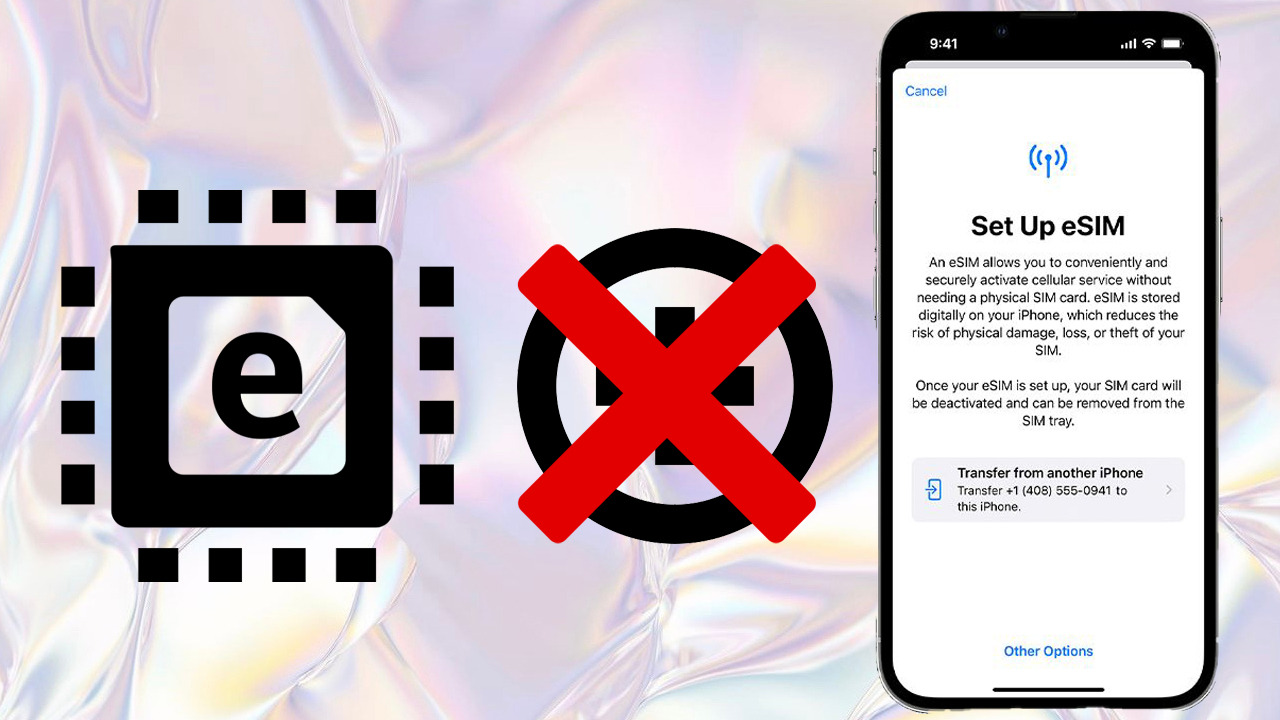
This error usually occurs when the user runs into a problem right at the eSIM installation step. In this case, the device cannot add the eSIM plan or cannot recognize the QR code due to various technical factors during activation.
Usually, when installing an eSIM, the user will scan the QR code provided by the carrier or eSIM service provider. However, an eSIM error may occur if the QR code cannot be scanned because the image is blurry, displays incorrectly, or has expired. In addition, while adding the mobile plan, the device may show an error message indicating that the eSIM cannot be recognized or cannot be added to the system.
Another very common cause is that the device does not support eSIM or is network-locked, which prevents the phone from allowing eSIM activation even when the installation steps are done correctly.
Signs:
- Unable to scan the eSIM QR code.
- Error appears when adding the mobile plan.
- The device does not allow adding an eSIM.
Detailed fixes:
- Check whether the device supports eSIM by comparing it with information from the manufacturer or carrier.
- Verify whether the device is network-locked, especially for phones bought overseas.
- Make sure the internet connection is stable throughout the eSIM installation process, and use Wi-Fi if possible.
- Check the validity of the eSIM QR code and contact the provider to have a new code reissued if needed.
Installed but no signal errors
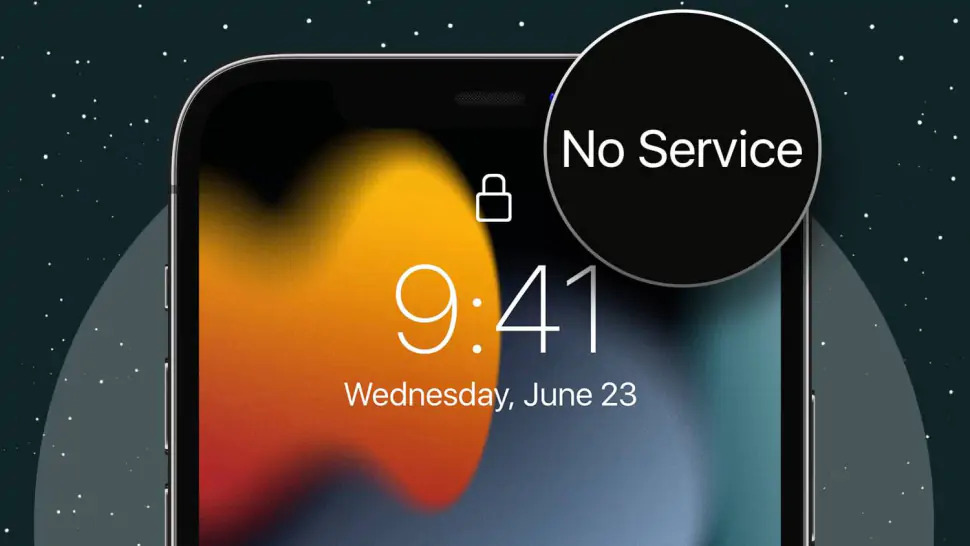
This error occurs after the eSIM has been successfully installed on the device but cannot connect to the mobile network. Users often assume the eSIM has a technical fault, while in reality the issue may be related to coverage or network activation status.
In some cases, the eSIM needs additional time to sync with the carrier’s system. Also, if the area being used is not within the coverage of the eSIM plan or the network is congested, the device will show “no service” even though the eSIM has been installed correctly.
Signs:
- Shows “no service”.
- No mobile signal bars.
- Unable to connect to the mobile network.
Detailed fixes:
- Turn on Airplane Mode for 10–15 g seconds, then turn it off to refresh the connection.
- Restart the device so the system can search for the network again.
- Move to a more open area, away from basements or enclosed spaces.
- Try selecting the network manually if the device allows it.
- Check whether the eSIM plan supports the area you are using.
Signal but no internet access errors
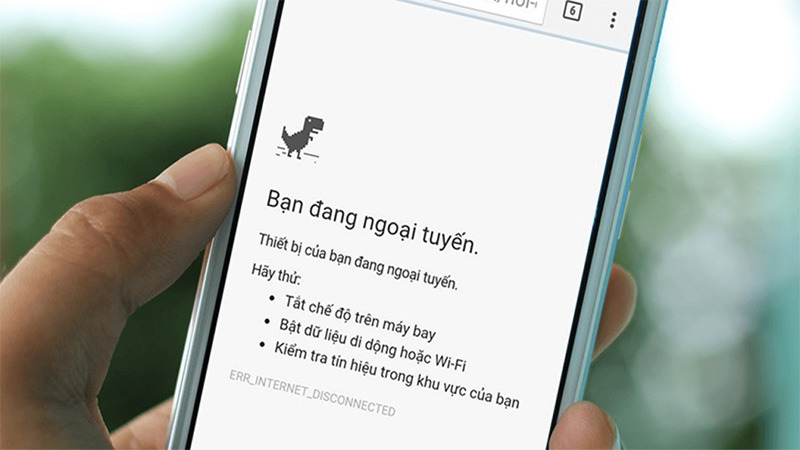
This is a very common eSIM error that confuses users because the device still shows full signal bars but cannot access data at all.
This error is usually not related to network signal but comes from data configuration. In many cases, the eSIM has not been selected as the primary SIM for internet, mobile data has not been turned on, or the user has forgotten to enable data roaming when using a travel eSIM abroad. In addition, the eSIM plan has run out of data or expired is also a very common cause.
Signs:
- Signal bars are present but there is no internet access.
- Apps report no network connection.
- Web pages do not load.
Detailed fixes:
- Check and turn on mobile data for the eSIM in settings.
- Set the eSIM as the default SIM for internet connectivity if using multiple SIMs.
- Enable data roaming when using the eSIM abroad.
- Check the remaining data allowance and validity period of the eSIM plan.
- Turn mobile data off and back on to refresh the connection.
Call, text, SMS verification not working errors
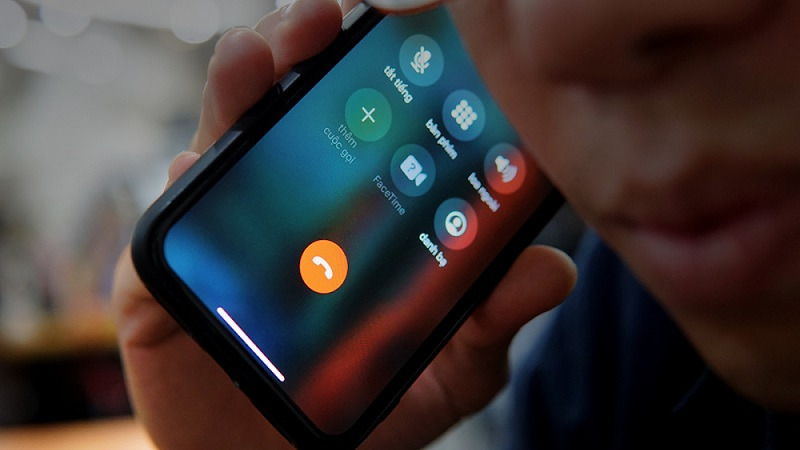
This error mainly occurs with domestic eSIMs and is usually related to the line configuration for calls and messages. Users often notice the issue when they do not receive OTP codes, cannot send text messages, or cannot make calls even though the device still has signal.
A common cause is that the eSIM has not been set as the primary line for calls and SMS, or there is a conflict when using an eSIM and a physical SIM together. In some cases, SMS or voice services have not been fully activated by the carrier for the eSIM.
Signs:
- SMS verification messages are not received.
- Cannot make calls or send text messages.
- Calls do not connect even though there is signal.
Detailed fixes:
- Set the eSIM as the default line for calls and messages.
- Check the line preference settings when using dual SIMs.
- Turn the eSIM off and back on to refresh the configuration.
- Contact the domestic carrier to check the status of voice and SMS services.
Errors arising when changing phones or using multiple SIMs together
This error occurs when users switch to a new phone or use an eSIM and a physical SIM at the same time. With eSIMs, moving to a different device is not as simple as with a physical SIM because many eSIMs are tied to the device from the first activation.
In particular, international travel eSIMs are usually single-use only. After scanning the QR code and activating it, the eSIM cannot be moved to another device. If the user deletes the eSIM or changes phones midway, an eSIM error is very likely to occur.
Signs:
- The eSIM does not work on the new phone.
- Network loss or intermittent connection when using dual SIMs.
- Cannot reinstall an eSIM that was previously activated.
Detailed fixes:
- Do not delete the old eSIM before you have a replacement plan.
- Check the carrier’s or provider’s eSIM transfer policy.
- Contact the provider to request a reissue of the eSIM if needed.
- Reconfigure data preference when using an eSIM and a physical SIM together.
Hotspot or personal hotspot cannot be turned on
Many people think the eSIM is faulty when hotspot cannot be enabled, but in reality this is often a limitation of the plan or the carrier’s policy.
Some eSIM plans, especially travel eSIMs, do not support internet sharing or limit hotspot use to ensure network quality. When users try to turn on personal hotspot, the device will show an error or will not allow activation.
Signs:
- Hotspot cannot be turned on.
- Personal hotspot is grayed out or unavailable.
Detailed fixes:
- Carefully check the terms of use of the eSIM plan you are using.
- Confirm whether the eSIM plan supports internet sharing.
- Contact the provider for advice on a suitable plan if you need hotspot.
See also: eSIM not compatible with iPhone: Causes and how to fix it
When do eSIM errors usually occur?
In reality, eSIM errors do not happen randomly but usually concentrate at certain times during use. Below are the times when eSIM issues are most likely to occur.
Right after installing the eSIM
This is the time when eSIM errors occur most often, especially for first-time eSIM users. The cause usually comes from an incomplete installation, configuration not yet fully synced with the carrier’s system, or an unstable internet connection during installation. In addition, some eSIMs need a few minutes to several tens of minutes to activate fully after installation, so if the user checks too soon, they may mistakenly think the eSIM is having an error.
When arriving in a new country or changing usage areas

When traveling to another country or changing usage areas, the eSIM must reconnect to a new carrier within the plan’s coverage area. During this transition period, eSIM errors can appear as temporary signal loss, no internet access, or unusually slow network speeds. This is often related to the network search process, data roaming, or a new area not yet supported by the eSIM plan being used.
When changing devices or updating the operating system
Switching to a new phone or updating the operating system can change the network settings structure on the device. In some cases, after an OS update, the eSIM configuration is not automatically synced again, leading to eSIM errors such as signal loss, no internet access, or some features not working. With international travel eSIMs, changing devices midway can also make the eSIM unusable again due to single-activation limitations.
See also: eSIM not receiving messages: 8 causes & the thorough fix
How to reduce eSIM errors from the start
To keep your eSIM stable and avoid issues during use, users should proactively prevent problems from the moment of choosing, installing, and actually using it.
Choose a reputable, transparent eSIM provider
The provider plays a major role in whether the eSIM works stably. Most eSIM errors come from buying an eSIM of unclear origin, lacking usage instructions, or having no technical support when problems arise.
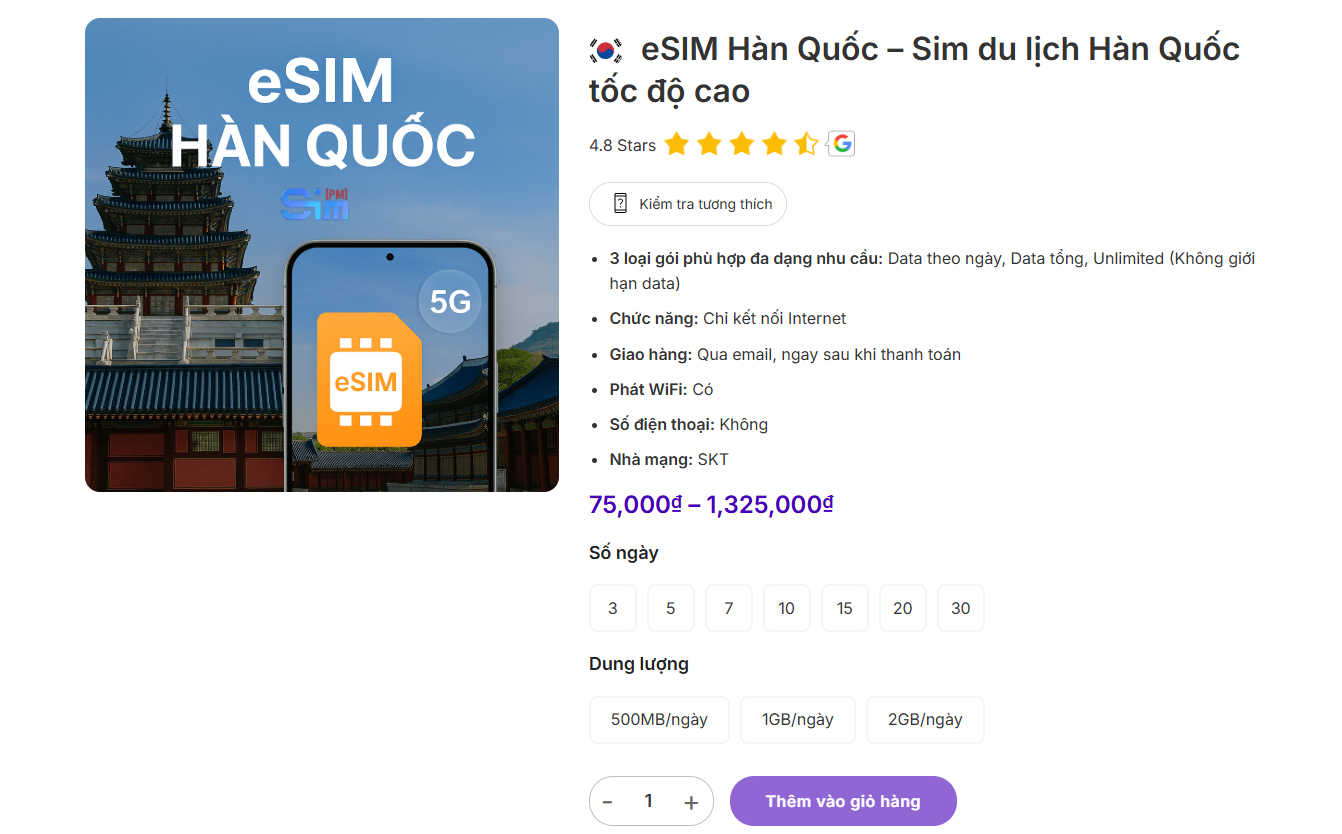
Users should prioritize providers that clearly publish coverage area, partner carriers, plan validity, data allowance, and support policies. For example, when buying a travel eSIM at SimPM, users can use the eSIM in more than 200 countries, connect via major carriers in each region, receive the installation QR code in just 3 to 10 minutes, and get specific guidance from the start, helping minimize risks during use.
You can refer to Japan eSIM, Korea eSIM, Germany eSIM,… at SimPM.
Check device compatibility before buying
Not every phone supports eSIM, or supports it fully in every market. Some devices can only activate eSIM in certain countries or are network-locked by foreign carriers. Checking in advance whether the device supports eSIM, while also verifying whether it is network-locked, will help users avoid the situationbuy eSIM but cannot be installed or activated.
Install the eSIM at the correct time according to the instructions
The timing of eSIM installation directly affects the user experience. With many travel eSIM plans, the usage period may be counted from activation or from the first network connection in the destination country.
If you install the eSIM too early before arriving in the usage area, it may be activated before it is actually needed or cause confusion during network detection. Installing the eSIM at the right time according to the provider’s instructions will help it work stably and be ready when needed.
Do not repeatedly reset network settings before identifying the cause
When problems arise, many people habitually reset network settings multiple times in the hope of quickly fixing an eSIM error. However, this action can remove necessary configurations or force the system to set everything up from the beginning again, making connectivity more complicated.
Instead of repeatedly resetting, users should check factors one by one such as mobile data, data roaming, SIM preference, and the status of the eSIM plan before taking stronger actions.
An eSIM error is something that can happen during use. When you understand the nature of each error and apply the right fix, you can resolve it quickly without worrying too much. More importantly, preparing carefully from the start, choosing a reputable provider, and using the eSIM according to the instructions will help minimize eSIM errors and deliver a stable connection experience, especially when traveling or on business abroad.