7 eSIM Errors on iPhone 11: Causes and Fixes

eSIM brings many conveniences to iPhone 11, but it does not always work smoothly. In fact, when using it, users may encounter some eSIM errors on iPhone 11. Together with SimPM, let’s find out the causes and detailed fixes so you can use eSIM stably and avoid errors from the start.
Does iPhone 11 support eSIM?
iPhone 11 supports eSIM according to Apple’s official announcement. iPhone 11 is one of the first iPhone models from Apple equipped with eSIM technology, allowing users to use a physical SIM and eSIM (dual SIM) at the same time on one device.
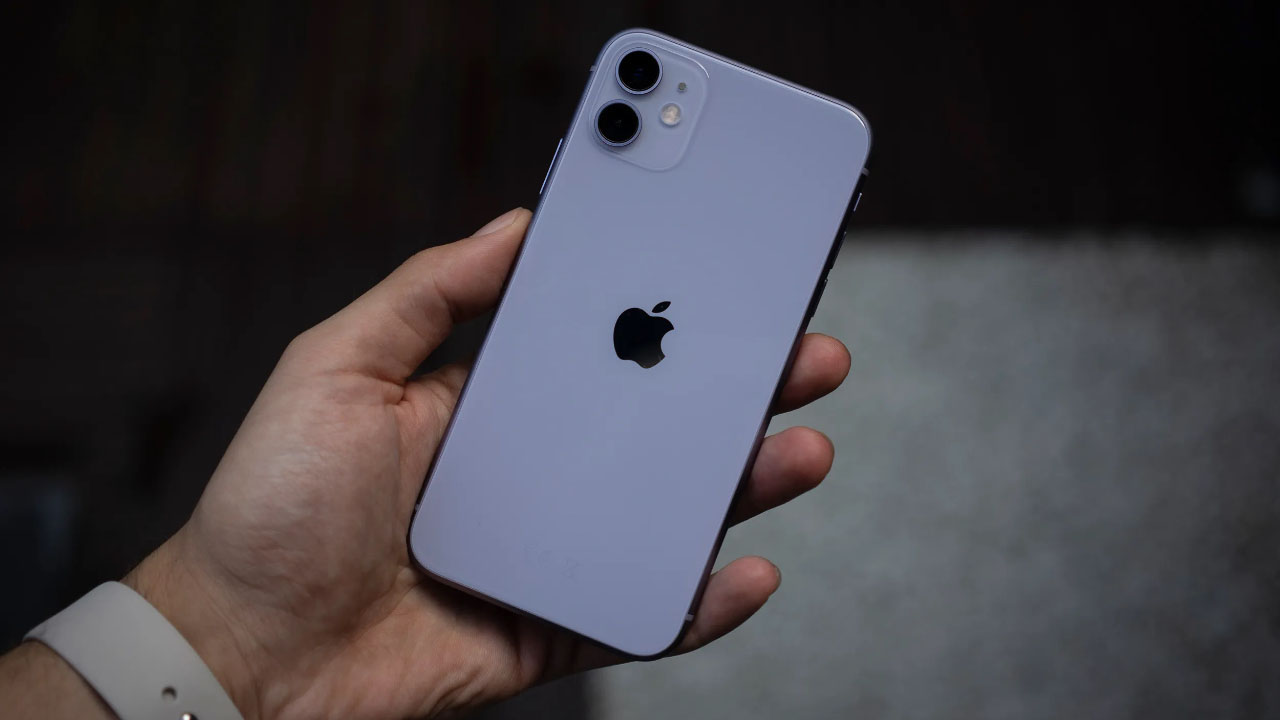
eSIM on iPhone 11 is a built-in digital SIM in the device; users only need to scan the QR code from the carrier to activate it, without inserting a SIM card. This offers greater flexibility in managing calls and data, especially useful for frequent travelers or users of multiple carriers.
Conditions for using eSIM on iPhone
For eSIM to work stably on iPhone, users need to meet some important conditions regarding the device, software, and carrier. If any of these factors are missing, errors can easily occur during use, typically the eSIM error on iPhone 11 that many people encounter.
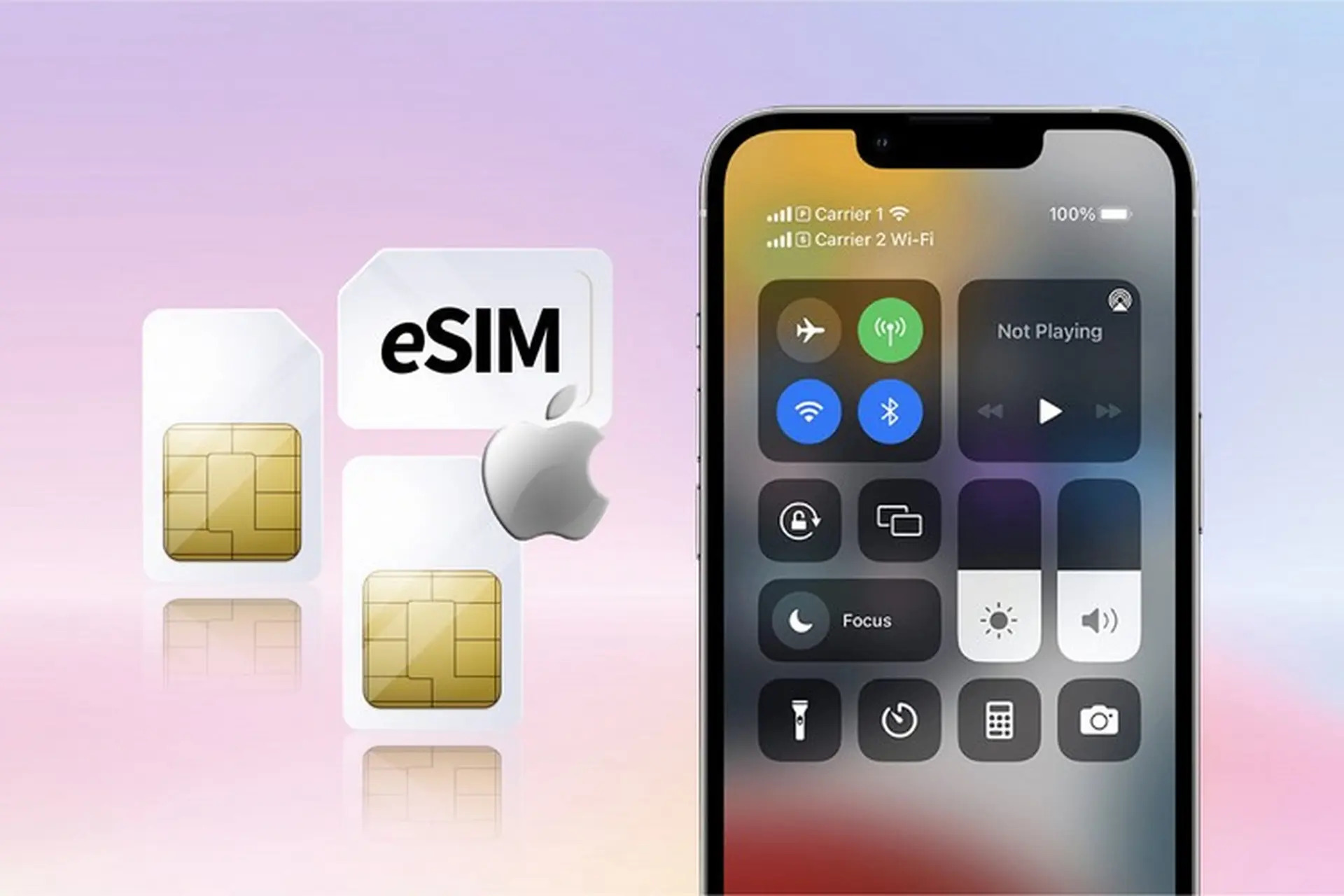
- The iPhone device supports eSIM:Not all iPhone models support eSIM. Only models from iPhone XR, iPhone XS and later (including iPhone 11) have this technology integrated by Apple.
- iOS version from 12.1 or later:eSIM only works when the iPhone is running iOS 12.1 or later. If the iOS version is too old, the device may not recognize the eSIM or may encounter errors during activation.
- The iPhone is an international version or fully unlocked:Locked iPhones are often restricted to a carrier, which can make the eSIM incompatible or unusable with other providers.
- The carrier or provider supports eSIM:Not all carriers offer eSIM. Users need to check in advance to make sure the eSIM is compatible with the device and the area of use.
- There is a valid eSIM QR code:eSIM is activated through a QR code provided by the carrier. This code must still be valid and must not have been used on another device.
- Stable internet connection during installation:During the process of scanning the QR code and activating eSIM, the iPhone needs a stable WiFi or mobile data connection to complete setup.
- Appropriate network settings and configuration:In some cases, additional APN setup or enabling roaming (for travel eSIM) is required for eSIM to function properly.
Common esim errors on iPhone 11 and how to fix them
During use, users may encounter many different issues related to eSIM. Identifying the correct error and resolving it promptly will help minimize connection interruptions, especially for those who travel frequently or use travel eSIM. Below are the common eSIM errors on iPhone 11 along with detailed fixes.
Cannot add eSIM
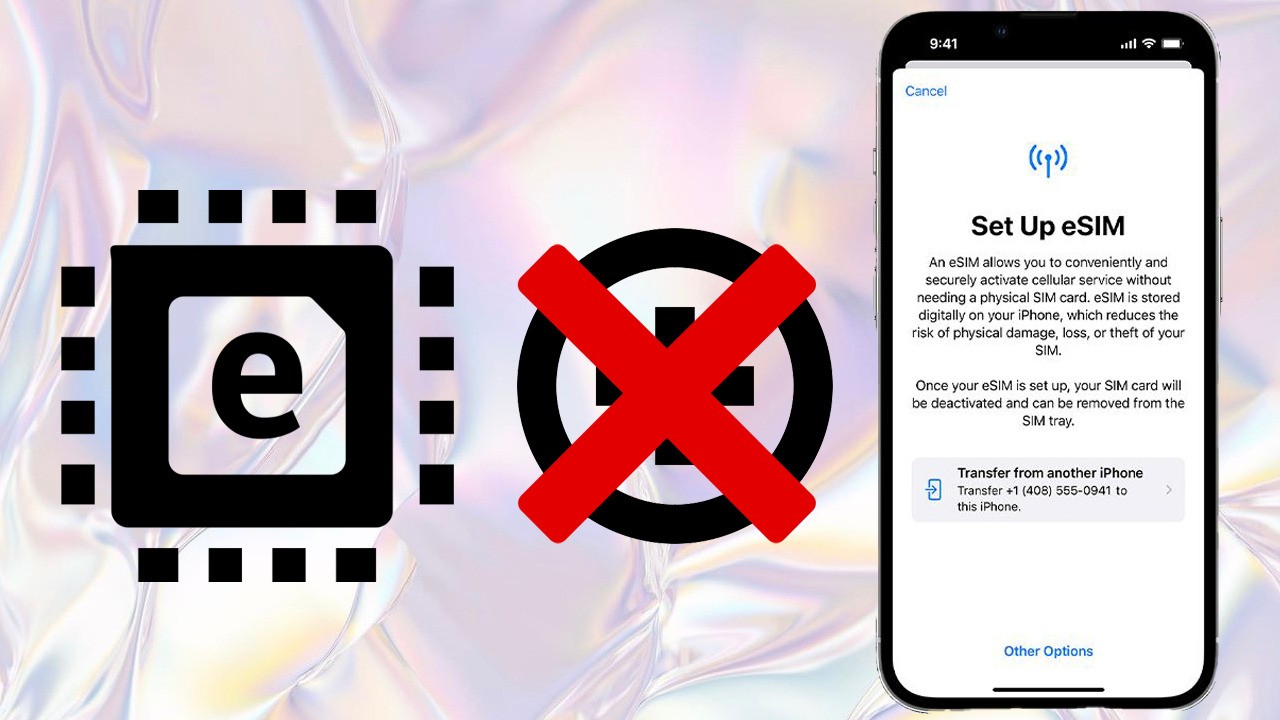
Symptoms and causes: iPhone shows “unable to add mobile plan,” does not recognize the QR code, or says the code has already been used; The cause is often that the QR code has expired, has already been activated on another device, or the internet connection is unstable during eSIM addition; In addition, in some cases the device has not updated iOS or the carrier has not activated the plan.
How to fix: check that the QR code is still valid and unused; Make sure the WiFi connection is stable when scanning the code; Try entering the eSIM information manually if supported; Update iOS to the latest version; Contact the carrier to reissue a new QR code if needed.
eSIM has no signal
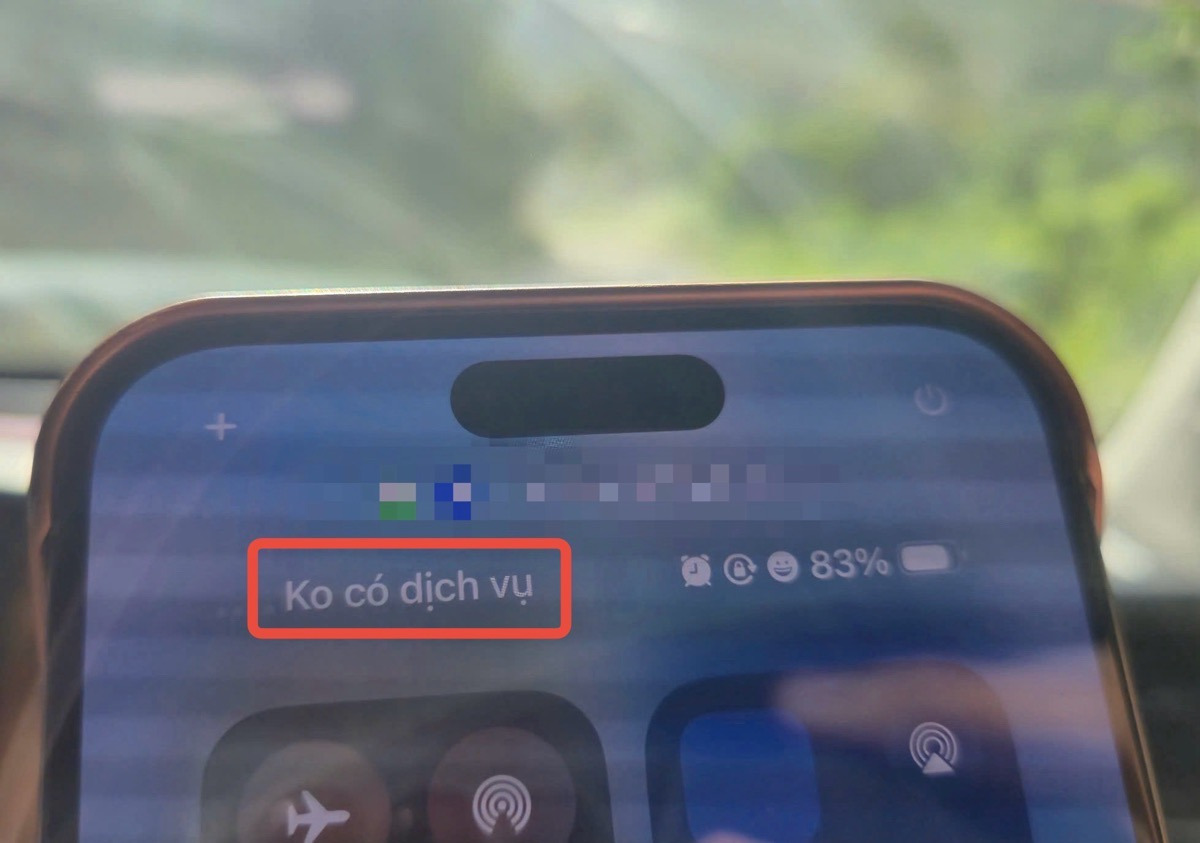
Symptoms and causes: the device displays “No Service,” “Searching,” or weak, intermittent signal; The cause may be weak coverage, incorrect network configuration, or the device not being registered with the carrier; In some cases, the error occurs when switching between a physical SIM and eSIM.
How to fix: turn Airplane Mode on and off to refresh the connection; Restart the iPhone; Go to settings to select the carrier manually; Check the default SIM for data and calls; Move to an area with a more stable signal.
eSIM mobile data does not work
Symptoms and causes: cannot access the internet even though there is still signal, mobile data does not work; The cause is usually that data has not been enabled for the eSIM, the APN configuration is incorrect, or there is a network settings conflict; In addition, it may be because the plan has run out of data allowance.
How to fix: check that mobile data is enabled for the correct eSIM; Reconfigure the APN according to the carrier’s instructions; Reset network settings to remove conflicts; Check the remaining data allowance; Turn mobile data off and on again to refresh the connection.
Cannot scan the QR code to add eSIM
Symptoms and causes: the camera does not recognize the QR code or scans it but does not respond; The cause may be a blurred QR code, insufficient light, glare on the screen displaying the QR code, or a camera issue; In some cases, the QR file is not in the correct format.
How to fix: increase the screen brightness of the device displaying the QR code; Place the device in a well-lit environment; Print the QR code on paper for easier scanning; Clean the camera and check that it works properly; Enter the eSIM information manually if the carrier provides it.
eSIM is deactivated or disappears on its own
Symptoms and causes: the eSIM disappears from settings or shows an inactive status; The cause often occurs after resetting the device, updating iOS, or due to a carrier error; In addition, the user may have accidentally deleted the eSIM profile.
How to fix: check again in the mobile settings section; Restart the device; Update carrier settings again if available; Contact the carrier to reissue the eSIM; Avoid resetting the device before saving the eSIM information.
eSIM cannot make calls or send texts
Symptoms and causes: cannot make calls or receive SMS; The cause may be that the plan does not support voice and text messaging or the default SIM has not been selected correctly; With travel eSIM, this error is often not a malfunction but a characteristic of plans that only support data.
How to fix: check the features of the plan you are using; Select the correct default SIM for calls and texts; Check FaceTime and iMessage settings; Contact the carrier if you need further support.
eSIM errors when roaming
Symptoms and causes: unable to connect to the network when abroad or mobile data roaming does not switch automatically; The cause is often that roaming has not been enabled, the wrong network has not been selected, or the eSIM plan does not support the destination country; In addition, the device may not have updated network settings.
How to fix: turn on data roaming in settings; Manually select the appropriate network in the country you are using; Restart the device after arrival; Check the eSIM coverage before your trip; Contact the provider if you still cannot connect.
eSIM does not work after updating iOS
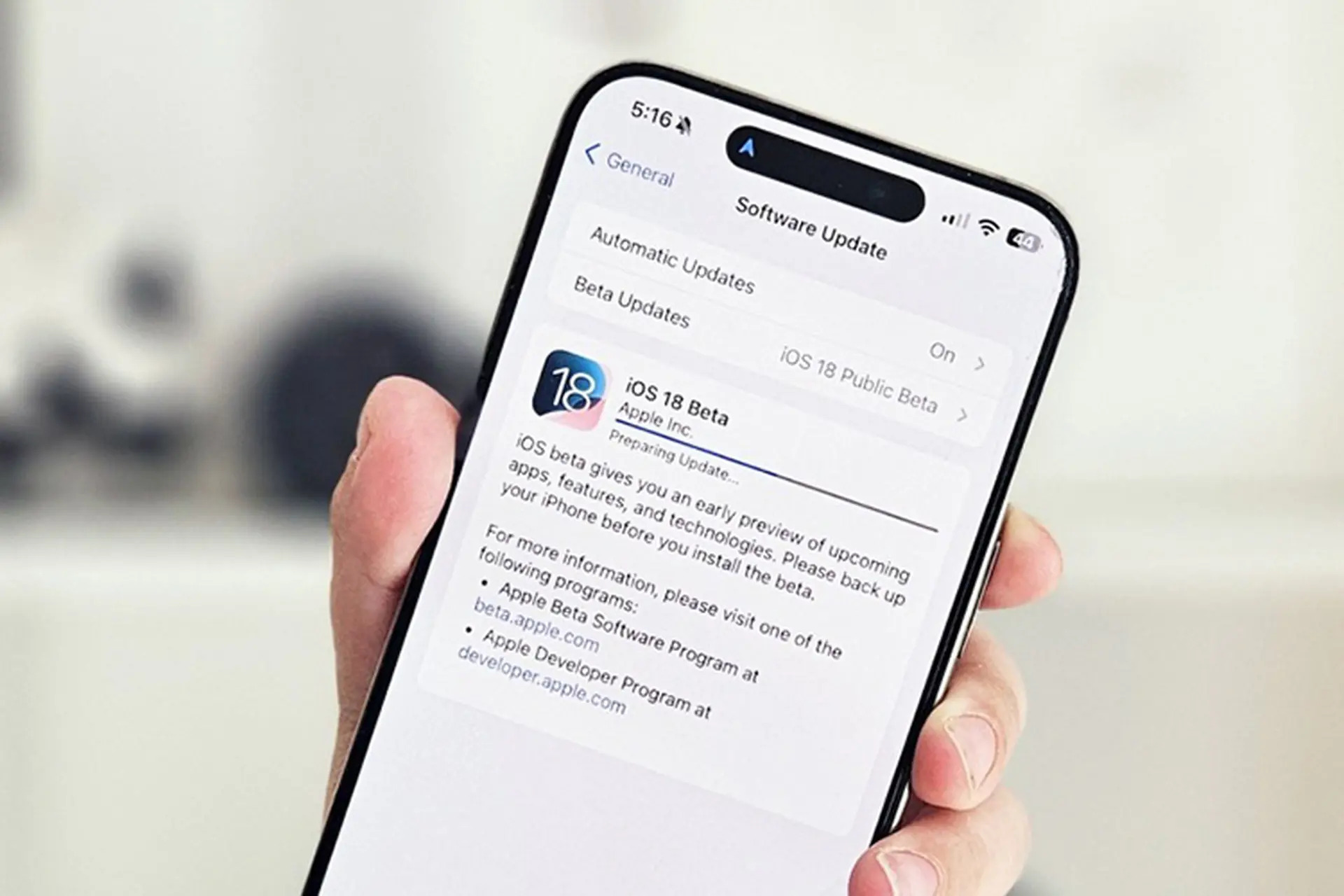
Symptoms and causes: loss of signal, no network detected, or eSIM works unstably after updating iOS; The main cause is software conflicts, compatibility errors, or network configuration changes after the update.
How to fix: check and update carrier settings; Reset network settings to refresh the configuration; Turn the eSIM off and on in settings; Delete and reinstall the eSIM if necessary; Make sure the device is using a stable iOS version.
Overall, eSIM errors on iPhone 11 are mostly caused by configuration, software, or the carrier. When handled correctly, users can fully fix them quickly without needing hardware intervention.
See more: Is eSIM good on iPhone? Detailed review
Important notes when using eSIM on iPhone 11
To keep eSIM working stably and minimize unwanted issues, users need to understand some important notes during use. This is also a way to help you avoid many eSIM errors on iPhone 11 commonly seen in practice.
Avoid resetting the device before checking eSIM
Restoring factory settings or resetting network settings can delete the eSIM profile from the device. If you do not save the QR code or activation information, you will need to contact the carrier again to get a new one. This not only takes time but may also incur fees.
Always save the QR code or eSIM information
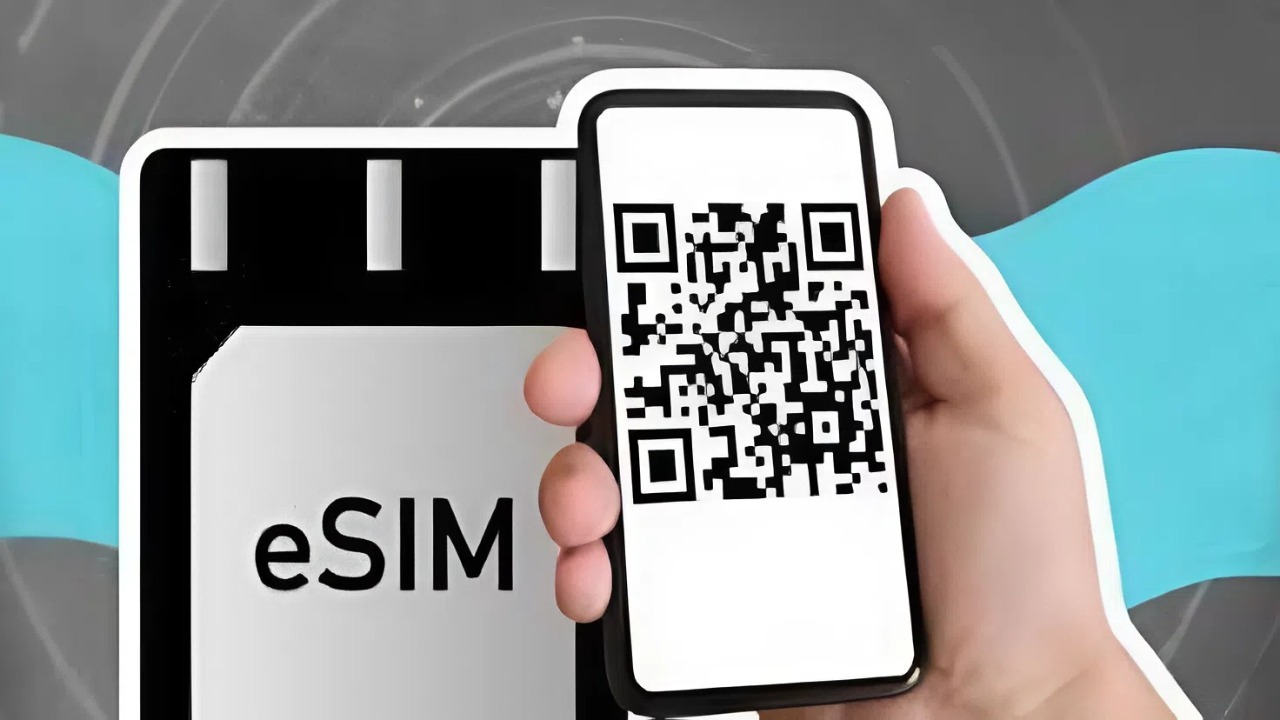
The QR code is the “key” to reinstalling the eSIM when needed. After activation, users should store this code as a file or image for reuse in case of device changes or errors. This is an important step that is often overlooked, leading to many problems when the eSIM is lost.
Choose a reputable eSIM provider
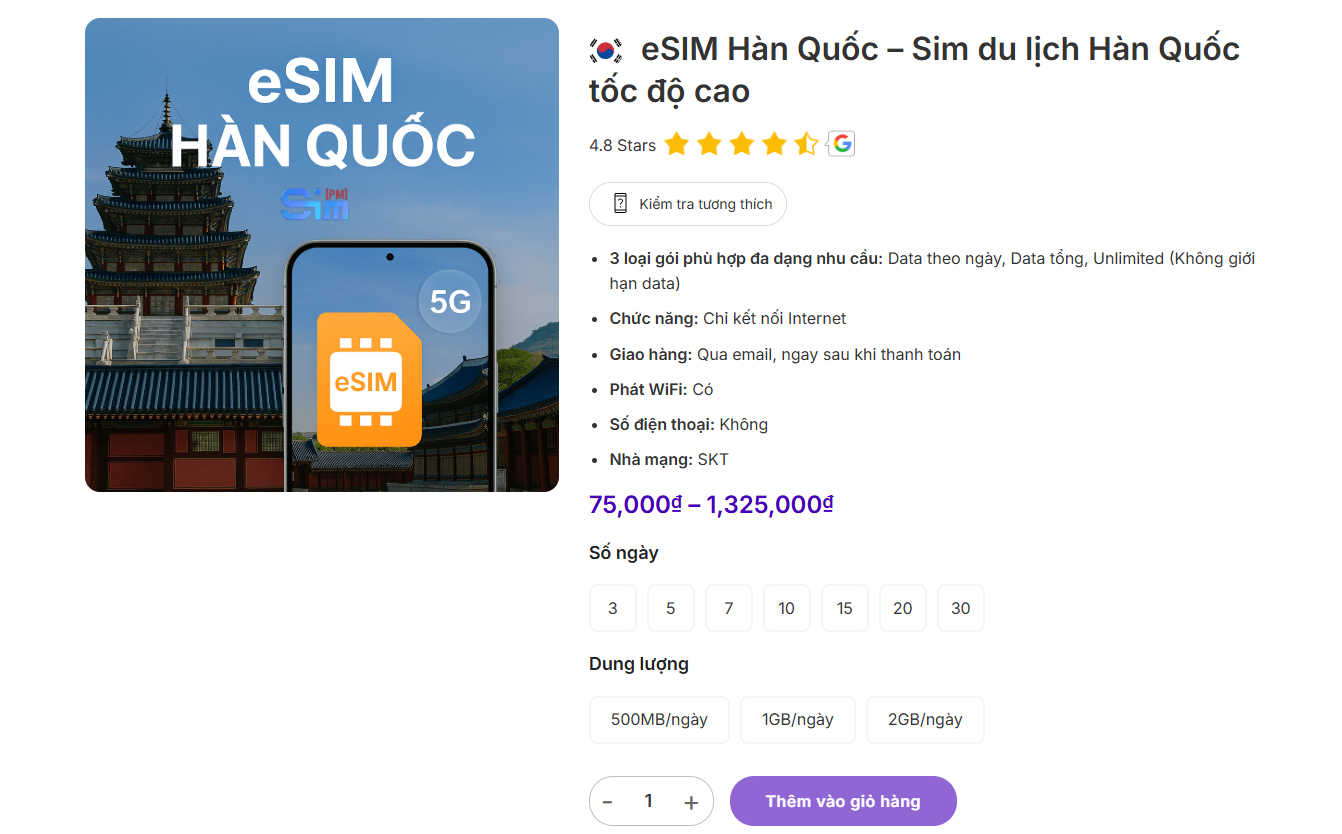
The quality of an eSIM depends greatly on the provider, especially with travel eSIM when you need a stable connection in many different countries. At present, SimPM SimPM is one of the travel eSIM providers chosen by many users thanks to its coverage system in more than 200 countries. The registration process is simple, and users can purchase quickly and receive the QR code within about 3 to 7 minutes via email. Installation is also very easy, suitable even for users who are not tech-savvy.

In addition, SimPM also has a technical support team ready to handle issues when they arise, helping users feel more secure when using eSIM on international trips. This is an important factor that helps minimize risks and ensure the connection is always stable.
Carefully check the plan before using
Not every eSIM supports voice calls and texting. In particular, travel eSIM usually only provides data. Not understanding the plan clearly can make users think the device is faulty, when in fact this is a service limitation.
Ensure the network settings are correct
During use, you need to make sure the correct eSIM is selected for mobile data, enable roaming when needed, and configure the APN according to the instructions. Mistakes in settings are a common reason why eSIM does not work even though it has been activated successfully.
Regularly update iOS and carrier settings
Apple and carriers regularly release updates to improve performance and fix bugs. Keeping iOS up to date and updating carrier settings helps reduce the risk of eSIM errors on iPhone 11 caused by software conflicts.
Limit using eSIM from unclear sources
Using buy eSIM cheap eSIMs of unclear origin can lead to many problems such as failure to activate, unstable network, or no support when errors occur. This directly affects the experience and can cause connection interruptions in important situations.
eSIM errors on iPhone 11 are not too complicated if you understand the cause correctly and handle each specific case accordingly. To minimize risks, choosing a reputable provider is very important. If you are looking for a stable, easy-to-install travel eSIM with fast support, SimPM is a worthwhile choice. Contact the hotline now 0919.999.936 to get advice and receive your eSIM within minutes, ready to connect anytime, anywhere.