How to Check eSIM on iPhone in 30 Seconds

eSIM (embedded SIM) is a digital SIM built into the iPhone, letting you use mobile networks without a physical SIM card. But how do you know whether your phone supports eSIM yet? Today, SimPM will help you check eSIM on iPhone quickly and accurately in just a few simple steps.
How to check whether eSIM is supported on iPhone
You can check whether your iPhone supports eSIM in 3 simple ways: check directly in Settings, view the IMEI information in About, and look it up by the device model number. Each method is quick and helps you accurately determine the eSIM support status on the device.
Method 1: Check in Settings
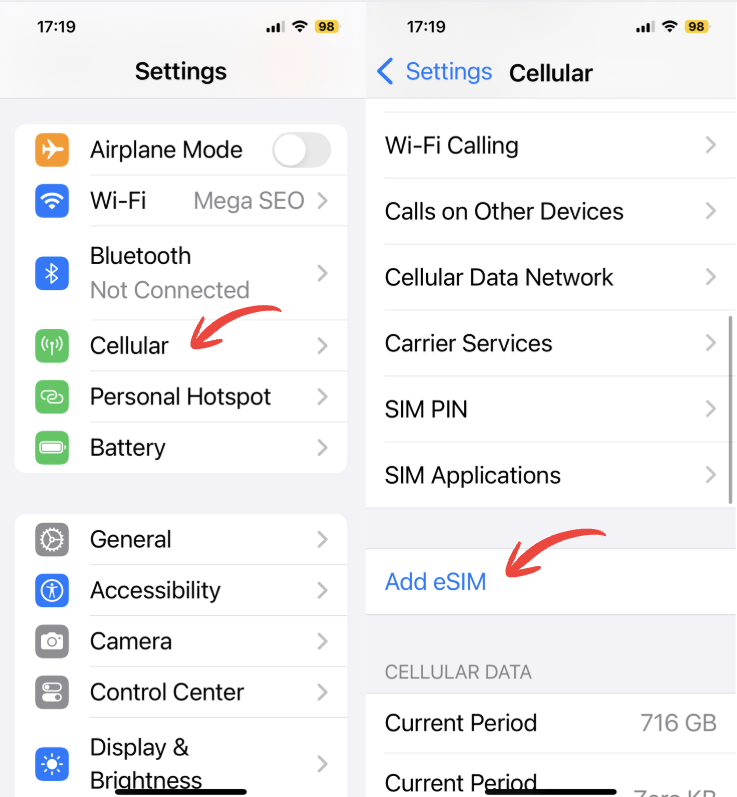
Below is the simplest and fastest way to check whether eSIM is supported on iPhone in just a few seconds.
- Go to Settings, then Cellular/Mobile Data: this is where you manage all SIMs and mobile network connections on iPhone. Here, you can view the list of SIMs in use, add a new eSIM, turn each SIM on or off, and check the device’s mobile data options.
- Look for Add eSIM or Add Cellular Plan: this option lets you add a new digital SIM to iPhone without inserting a physical SIM. If this item appears, it means the device has eSIM-capable hardware and is ready to be activated with a carrier.
- Check the displayed cases: this step helps you accurately determine the device’s eSIM support status.
If you see the Add eSIM option, the iPhone supports eSIM. If you don’t see it, your phone may not support eSIM, may be a market-limited version (for example, the China version), or may need an iOS update to a newer version.
Method 2: Use the eSIM-supported device list page for a quick check
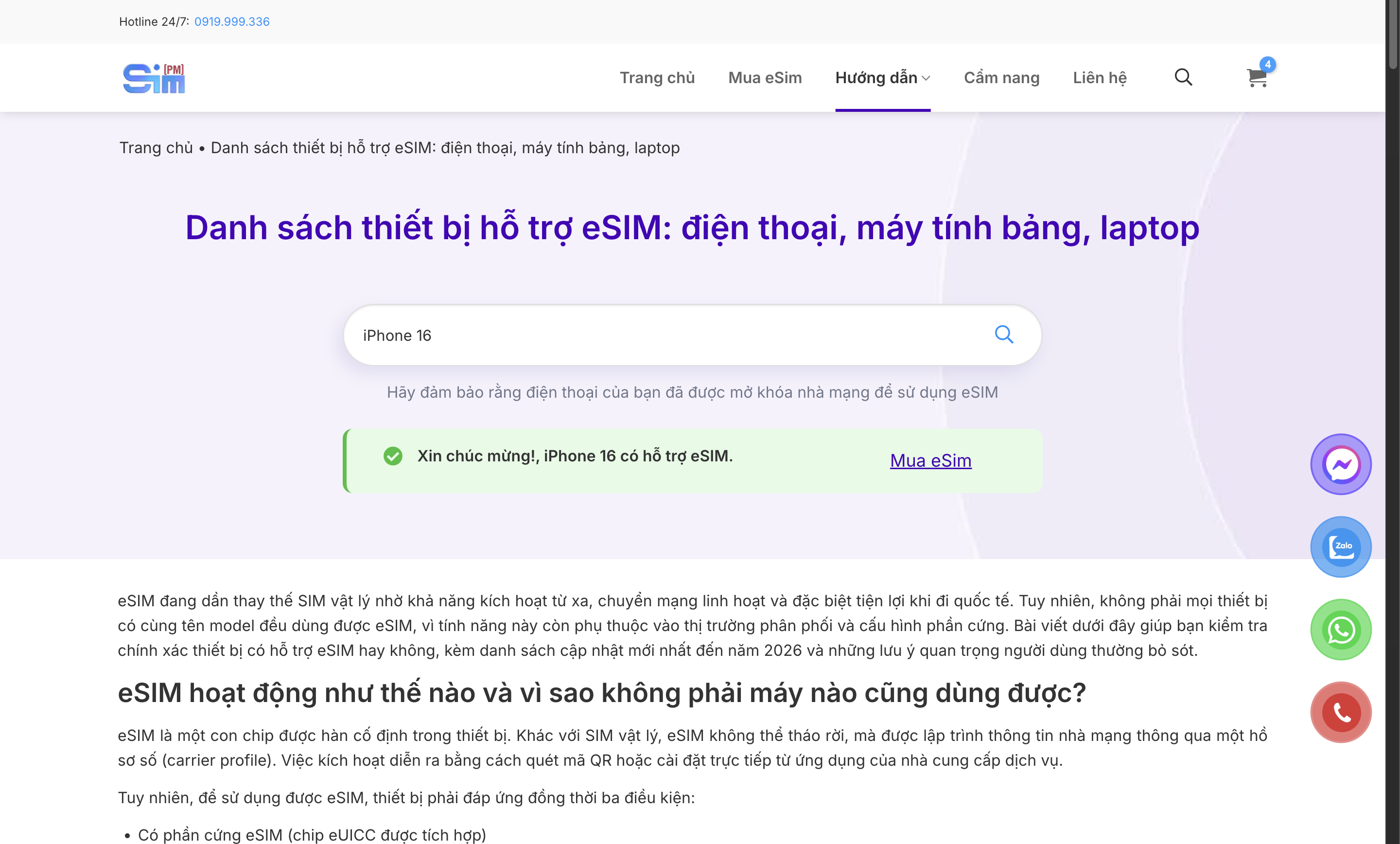
If you’re not sure whether your iPhone supports eSIM, visit the eSIM-supported device list page on simPM to look it up and check eSIM on iPhone quickly. Just find the correct phone model name in the list; if the device appears, your phone can use eSIM. This is a simple and accurate way to check before activating eSIM.
Method 3: Check by iPhone model
In addition to checking in Settings, you can check eSIM on iPhone by looking at the model code and model number. Most models from iPhone XS/XR onward support eSIM, but some market-specific versions may differ.
| iPhone generation | eSIM-supported models | Market notes |
| iPhone 17 Series | 17, 17 Air, 17 Pro, 17 Pro Max | No eSIM support on mainland China versions |
| iPhone 16 Series | 16, 16 Plus, 16 Pro, 16 Pro Max | No eSIM support on mainland China versions |
| iPhone 15 Series | 15, 15 Plus, 15 Pro 15 Pro Max | No eSIM support on mainland China versions |
| iPhone 14 Series | 14, 14 Plus, 14 Pro, 14 Pro Max | The US version (LL/A) may be eSIM-only |
| iPhone 13 Series | 13, 13 mini, 13 Pro, 13 Pro Max | The 13 mini still supports eSIM in some special markets |
| iPhone 12 Series | 12, 12 mini, 12 Pro, 12 Pro Max | 12 mini still supports eSIM in some special markets |
| iPhone 11 Series | 11, 11 Pro, 11 Pro Max | No eSIM support on mainland China versions |
| iPhone X Series | XS, XS Max, XR | The XS still supports eSIM in some special markets |
| iPhone SE Series | SE (2020), SE (2022) | The SE 2020 still supports eSIM in some special markets |
Method 4: Check by IMEI
IMEI (International Mobile Equipment Identity) is a unique identification number for each phone, used to identify the device when connecting to a mobile network. Each iPhone has at least one IMEI number, and the number of IMEIs can help you check eSIM on iPhone.
- Go to Settings → General → About: this is where all hardware information for the iPhone is displayed, including the IMEI number and SIM status.
- Check the number of IMEIs displayed: if you see 2 IMEI numbers, it means the phone supports Dual SIM (usually 1 nano SIM + 1 eSIM).
If there is only 1 IMEI, the phone may not support eSIM or may be a market-specific special version. - Dual SIM vs eSIM-only explained
- Dual SIM (nano SIM + eSIM): common in Vietnam and many other markets, allowing 1 physical SIM and 1 eSIM to be used at the same time.
- eSIM-only: usually the US version from iPhone 14 onward, with no physical SIM tray and using eSIM only.
Checking IMEI is a quick and accurate way to confirm, especially useful when you buy a used iPhone or an imported device.
How to check whether eSIM is already installed on iPhone
After confirming that the iPhone supports eSIM, the next step is to check whether eSIM has already been installed on the device. You can do this quickly in the SIM management section to see the device’s current status.
Check the SIM list
To check the SIM list on iPhone, go to Settings → Cellular/Mobile Data. Here, you will see all SIMs installed on the device, including physical SIMs and eSIMs if any. If the phone shows two different network lines, one of them is very likely an eSIM. You can tap each SIM to check eSIM on iPhone, including detailed information and usage status.
How to tell eSIM and physical SIM apart
To distinguish eSIM from a physical SIM, go to Settings → Cellular/Mobile Data, then select each SIM in the list. If it is a Physical SIM, iPhone usually shows information related to the SIM tray and does not have an option to remove the eSIM. In contrast, eSIM will have options such as “Remove Cellular Plan” and does not require removing the SIM tray when switching.
Also, if you remove the physical SIM from the phone and a network still appears in the list, that is the eSIM installed on the iPhone.
How to check whether eSIM is active
To check whether eSIM is active, go to Settings → Cellular/Mobile Data and select the eSIM in the SIM list. If “Turn On This Line” is enabled and signal bars appear on the screen, the eSIM is working normally.
You can also check by turning on mobile data for the eSIM or making a test call; if the connection succeeds, the eSIM has been activated and is working stably.
How to check whether the iPhone is carrier-locked
Checking whether an iPhone is carrier-locked is very important, especially when you buy a used or imported device. If the iPhone is carrier-locked, the device can only use SIM cards from a specific carrier and may not be able to activate eSIM from another carrier. This directly affects your ability to use eSIM, switch networks, or use an international SIM while traveling.
To check whether the iPhone is carrier-locked, go to Settings → General → About, then scroll down to “Carrier Lock”.
- If it shows “No SIM restrictions” → the iPhone is an international model and can use SIM and eSIM from any carrier.
- If it shows the name of a specific carrier → the phone is carrier-locked and can only use that carrier’s SIM.
This is a quick and accurate way to know whether the iPhone is restricted when using eSIM.
Why iPhone does not display eSIM
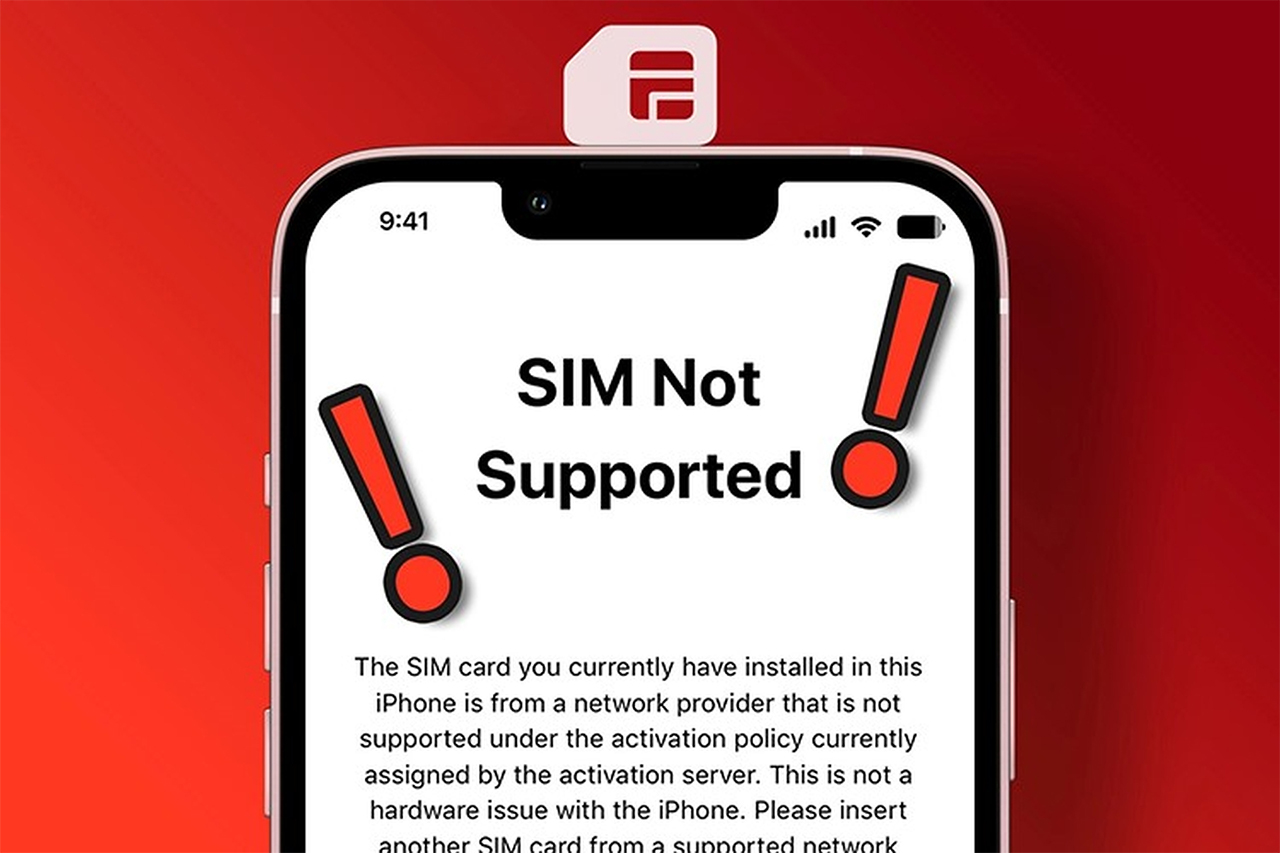
In some cases, even though the iPhone supports eSIM, the “Add eSIM” option still does not appear in Settings. The cause may be related to software, device configuration, or market distribution restrictions.
iOS not updated
One common reason the iPhone does not show the “Add eSIM” item is that the iOS version is too old. Some eSIM features are only fully supported on newer iOS versions, especially from iOS 12.1 onward and are well optimized in recent iOS releases. If the operating system has not been updated, the phone may not show the option to add eSIM even though the hardware supports it. You should go to Settings → General → Software Update to check and upgrade to the latest version. After updating, restart the phone and check the Cellular section again.
System error
Sometimes iPhone does not display eSIM due to a temporary system error or software conflict. These issues can occur after an iOS update, data restoration, or network configuration changes. In this case, you should try restarting the device to refresh the system. If eSIM still does not appear, go to Settings → General → Transfer or Reset iPhone → Reset → Reset Network Settings. This will not erase personal data, but it may help fix connection- and SIM-configuration-related errors.
Regional restrictions
Some iPhone versions produced for specific markets may have eSIM feature restrictions. For example, iPhone models from mainland China (CH/A) usually do not support eSIM and instead use 2 physical SIM. In addition, some regions have their own telecom regulations that cause the eSIM option to be hidden or unavailable. Therefore, you should check the model number in About to determine which market the device belongs to before concluding whether it supports eSIM.
If you have applied the methods above but still cannot check it or need to buy a suitable eSIM, please call 0919.999.936 (main hotline 24/7) or 0345.595.999 for the fastest and most accurate support.
Read more: eSIM not compatible with iPhone: Causes and solutions
Comparison between iPhone with eSIM and iPhone without eSIM
Below is a more accurate and clear comparison between an iPhone with eSIM and an iPhone that uses only a physical SIM:
| Criteria | iPhone with eSIM | iPhone without eSIM |
| Security | Cannot remove the physical SIM to disconnect immediately | Can remove the physical SIM card from the phone |
| Convenience | No need to insert a SIM, quick online activation | Must insert/replace the SIM manually |
| International travel | Buy and activate eSIM online before flying | Must buy a SIM at the airport or in a store |
| Switching carriers | Can add multiple eSIMs and switch in Settings | Need to replace the physical SIM when changing carriers |
Overall, eSIM offers flexibility, convenience, and is suitable for people who travel frequently or use multiple phone numbers on the same device.
Read more: Where to switch eSIM? Guide to switching online at home & at the counter
Checking eSIM on iPhone is not difficult if you know the right way to do it. With just a few steps in Settings, checking IMEI, or looking up the model number, you can accurately determine whether your device supports and is currently using eSIM. We hope this guide helps you feel more confident when activating, switching carriers, or choosing an iPhone that fits your needs.