How to Use eSIM on iPhone 12: Simple, Easy Steps

eSIM is gradually becoming a preferred choice thanks to its convenience and flexibility. With iPhone 12, setting up and managing eSIM becomes easier than ever if you know the correct process. SimPM will guide you in detail on how to use eSIM on iPhone 12, helping you stay connected proactively, optimize costs, and be ready to use eSIM for communication, work, or international travel needs.
Can iPhone 12 use eSIM?
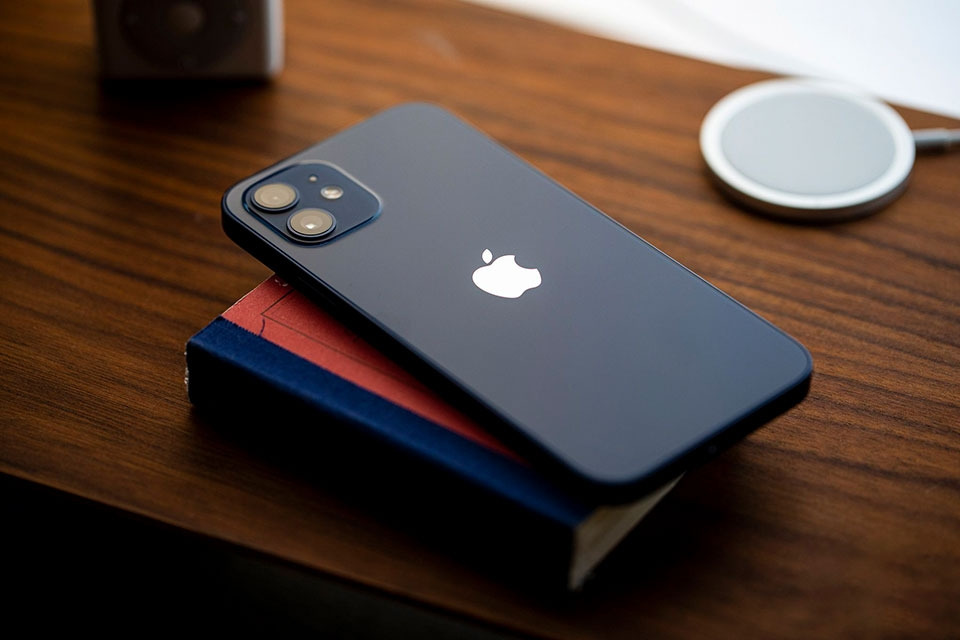
Can iPhone 12 use eSIM? The answer is yes. iPhone 12 supports eSIM and allows simultaneous use of 1 physical SIM + 1 eSIM for official retail versions sold in Vietnam.
However, users should also note the differences between device versions:
- Official iPhone 12 units in Vietnam support 1 physical SIM and 1 eSIM.
- iPhone 12 imported from China or Hong Kong (model codes CH/A, ZP/A) uses 2 physical SIM and does not support eSIM.
Therefore, before buying or setting up eSIM, you should carefully check the device origin and model code to make sure your device is compatible.
Things to prepare before setting up eSIM on iPhone 12
To make the process of using eSIM on iPhone 12 smooth, stable, and to minimize potential errors, users need to prepare a number of important conditions before installation. Preparing correctly and fully from the start will help eSIM activate quickly, work stably, and suit real-world usage needs.
Check the iOS version
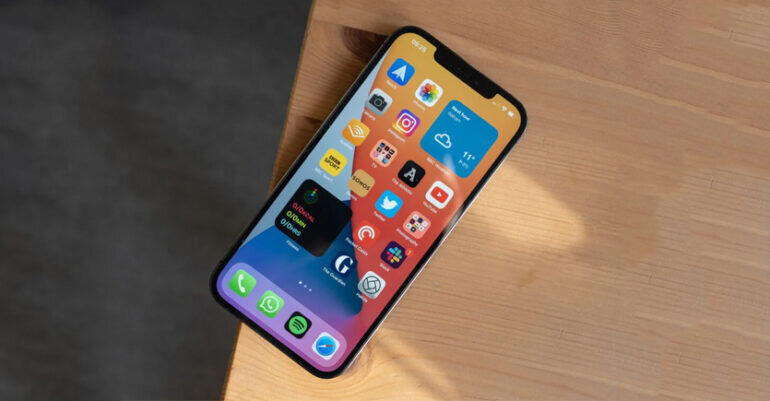
The first prerequisite is that iPhone 12 must be running iOS 12.1 or later. This is the minimum version Apple supports for eSIM on iPhone. If the device is using an iOS version that is too low, the option to add an eSIM plan may not appear, or activation may easily encounter errors. Updating iOS to a suitable version will help optimize performance and ensure a stable experience when using eSIM on iPhone 12.
Ensure a stable internet connection
During eSIM setup, iPhone 12 needs a continuous internet connection via Wi-Fi or mobile data from the physical SIM. The internet connection allows the device to download and verify the eSIM configuration from the carrier’s or provider’s server. If the connection is interrupted, the setup may not complete, or the eSIM may not work as expected after activation.
Confirm that the carrier or eSIM provider is compatible
Before setup, users need to confirm whether the provided eSIM supports iPhone 12 and the intended usage region. Not every eSIM is fully compatible with every device or every country. Checking beforehand will help ensure the process of using eSIM on iPhone 12 is correct for your needs and avoid situations where there is no signal or data cannot be accessed after installation.
Prepare all eSIM activation information
Users need to have the eSIM QR code or manual setup information such as the SM-DP+ address and activation code ready. This information is usually issued only once and tied to a single device. Entering the activation details accurately and keeping them secure helps the eSIM setup process proceed quickly and reduces potential risks.
Clearly define the purpose of using eSIM on iPhone 12
Before activating eSIM, you should clearly define whether the eSIM will be used for mobile data, work communication, or international travel. Defining the purpose from the start helps you set up the right configuration, makes it easier to manage when using eSIM alongside a physical SIM, and makes using eSIM on iPhone 12 more flexible and efficient over the long term.
Step-by-step guide to setting up eSIM on iPhone 12
After preparing all the necessary conditions, users can proceed with setting up eSIM on iPhone 12. Following the steps in the correct order will help the eSIM activate quickly, minimize errors, and ensure using eSIM on iPhone 12 remains stable throughout use.
How to set up eSIM on iPhone 12 using a QR code
Step 1: Open cellular settings
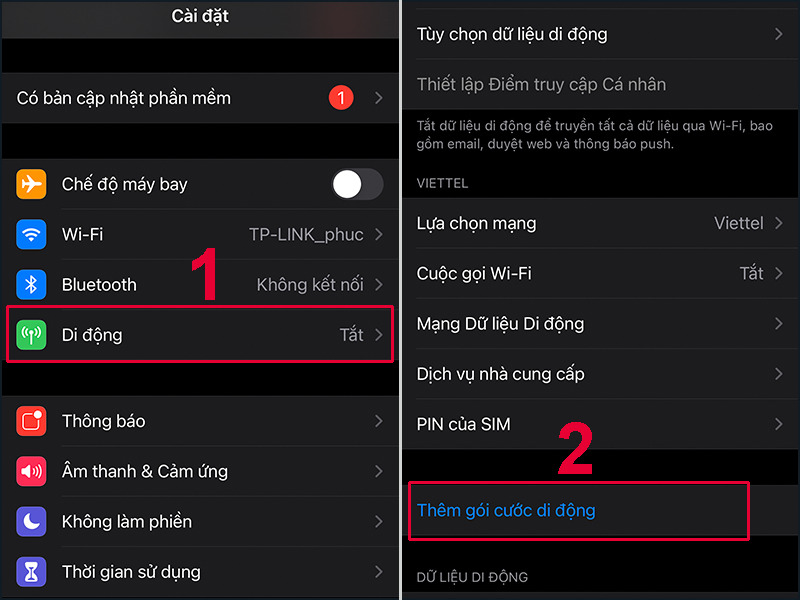
Open Settings on iPhone 12, then select Cellular to manage your active plans.
Step 2: Add a cellular plan
On the Cellular screen, tap Add Cellular Plan to begin setting up the new eSIM.
Step 3: Scan the eSIM QR code
The iPhone will automatically activate the camera. Point the camera at the eSIM QR code sent to you by the carrier or eSIM provider. Each eSIM uses only one unique QR code and cannot be installed again on another device.
Step 4: Confirm the information and complete setup
After the code is scanned successfully, the iPhone will display the eSIM plan information. Check the information again, confirm, and wait for the system to complete the activation process. Once finished, the eSIM will be added to the list of plans on iPhone 12.
How to set up eSIM on iPhone 12 by manual entry
Step 1: Go to add cellular plan
Open Settings > Cellular, then select Add Cellular Plan just like when setting up with a QR code.
Step 2: Choose manual details entry
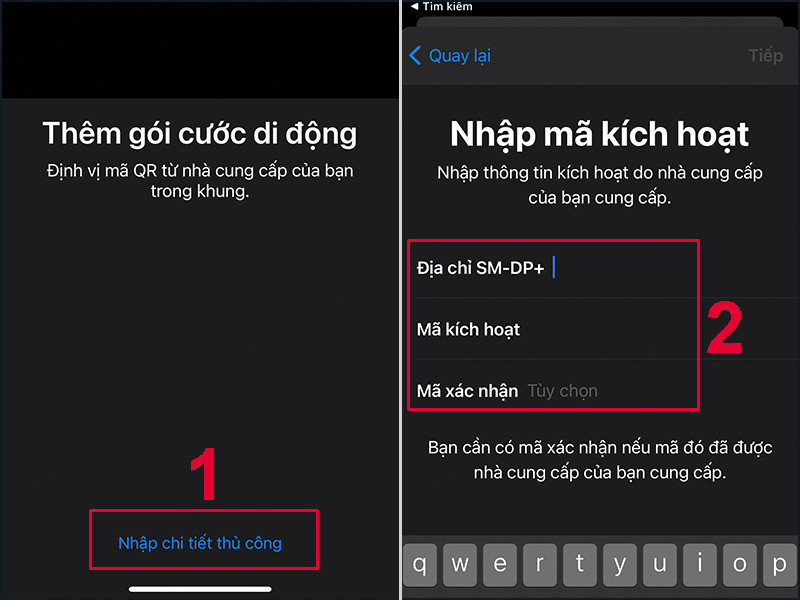
On the QR scanning screen, select Enter Details Manually to switch to activation-information setup.
Step 3: Enter the eSIM activation information
Enter the SM-DP+ address and activation code provided by the carrier or eSIM provider exactly. You need to enter each character correctly to avoid errors during verification.
Step 4: Complete eSIM setup
After entering all the information, the iPhone will automatically connect to the server to download the eSIM profile. When this process is complete, the eSIM will be activated and ready to use on iPhone 12.
Check the eSIM after installation
After setup is complete, go back to Cellular in Settings to check whether the eSIM appears. You can check the signal, turn on mobile data, or make a test call to confirm the eSIM is working properly. Checking right away helps ensure using eSIM on iPhone 12 does not experience interruptions in actual use.
See more: Does iPhone 8Plus have eSIM? Quick check guide for iPhone
How to set up eSIM after installation on iPhone 12
After the eSIM has been successfully installed, the initial setup step plays a very important role in ensuring the eSIM works for the intended purpose and is easy to manage during use.
Rename the eSIM for easy identification and management
When using a physical SIM and eSIM together, naming the eSIM helps you avoid confusion between plans. iPhone 12 allows users to customize the eSIM name according to its purpose, such as data, work, or travel.
To do this, go to Settings > Cellular, select the newly installed eSIM, then change the default name and save it. A clear name will help you manage your plan more easily throughout the process of using eSIM on iPhone 12.
Set the eSIM as the primary mobile data line
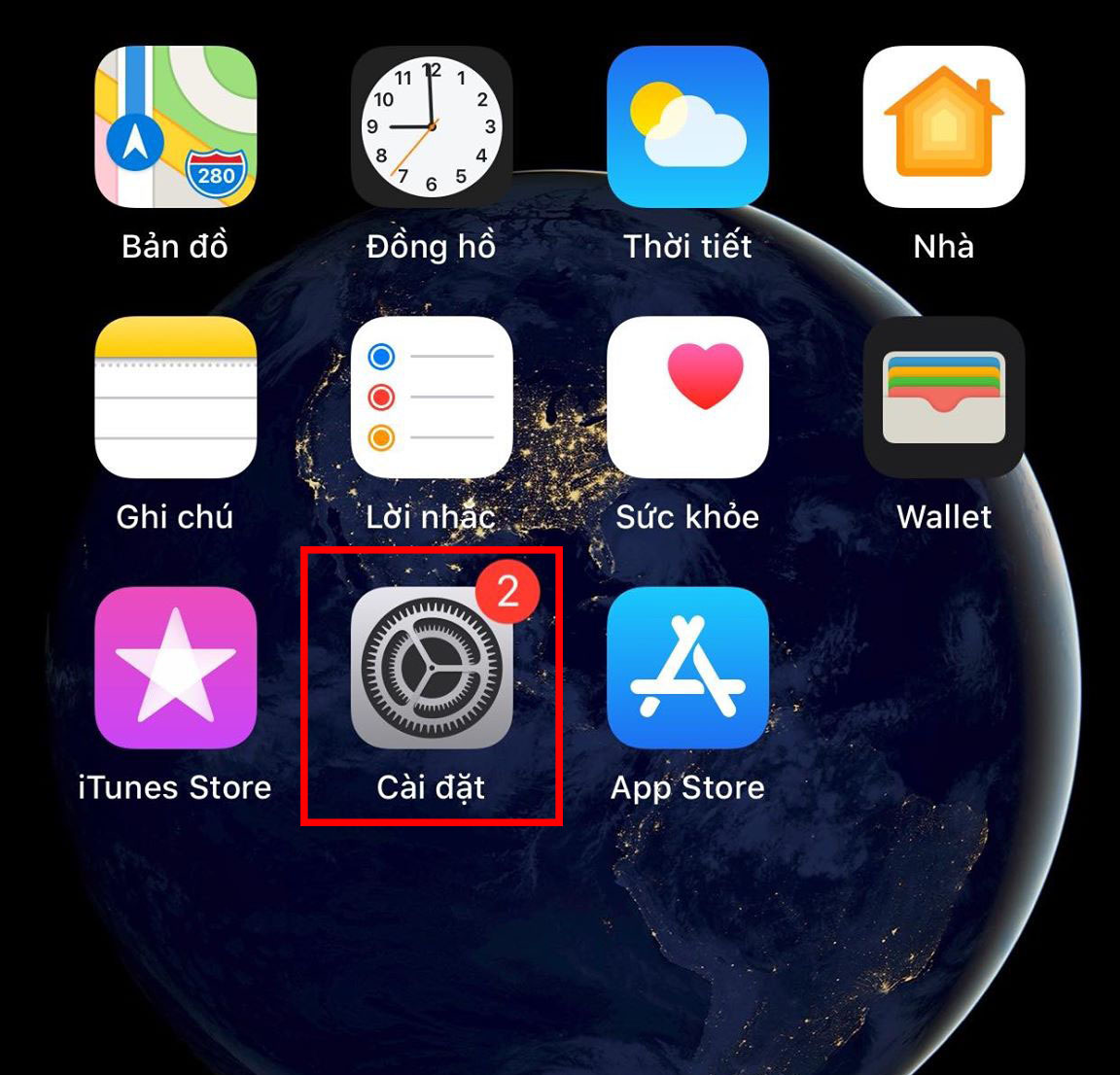
If the eSIM is used to access the internet, you need to set the eSIM as the default mobile data source. In Settings > Cellular > Mobile Data, choose the eSIM you want so iPhone 12 prioritizes it for internet connection.
This setup is especially important when you use a travel eSIM or international eSIM, helping the device automatically connect to the correct data plan without having to switch manually multiple times.
Turn eSIM on or off when needed
iPhone 12 allows users to conveniently turn eSIM on or off depending on their needs. When you do not need to use the eSIM, you can temporarily turn it off in Cellular to reduce unnecessary connections and save battery. When you need it again, just turn the eSIM back on without reinstalling it from scratch.
This feature brings great convenience and makes using eSIM on iPhone 12 more proactive, especially for those who frequently change usage environments.
Set default calling and messaging lines
In addition to mobile data, you can also choose the eSIM or physical SIM as the default number for calls and messages. In Cellular, iPhone 12 lets you set a preferred number or choose to be asked each time you make a call.
Clear setup helps avoid confusion when communicating, especially when using multiple phone numbers on the same device.
Delete the eSIM when you no longer need it
If you no longer use the eSIM or want to switch to another plan, you can delete the eSIM directly on iPhone 12. Go to Settings > Cellular, select the eSIM you want to delete, and tap Remove Cellular Plan to completely remove the eSIM from the device.
This keeps the device tidier and ensures you always maintain good control of active plans, helping optimize the use of eSIM on iPhone 12 safely and effectively.
Where to buy a reliable travel eSIM?
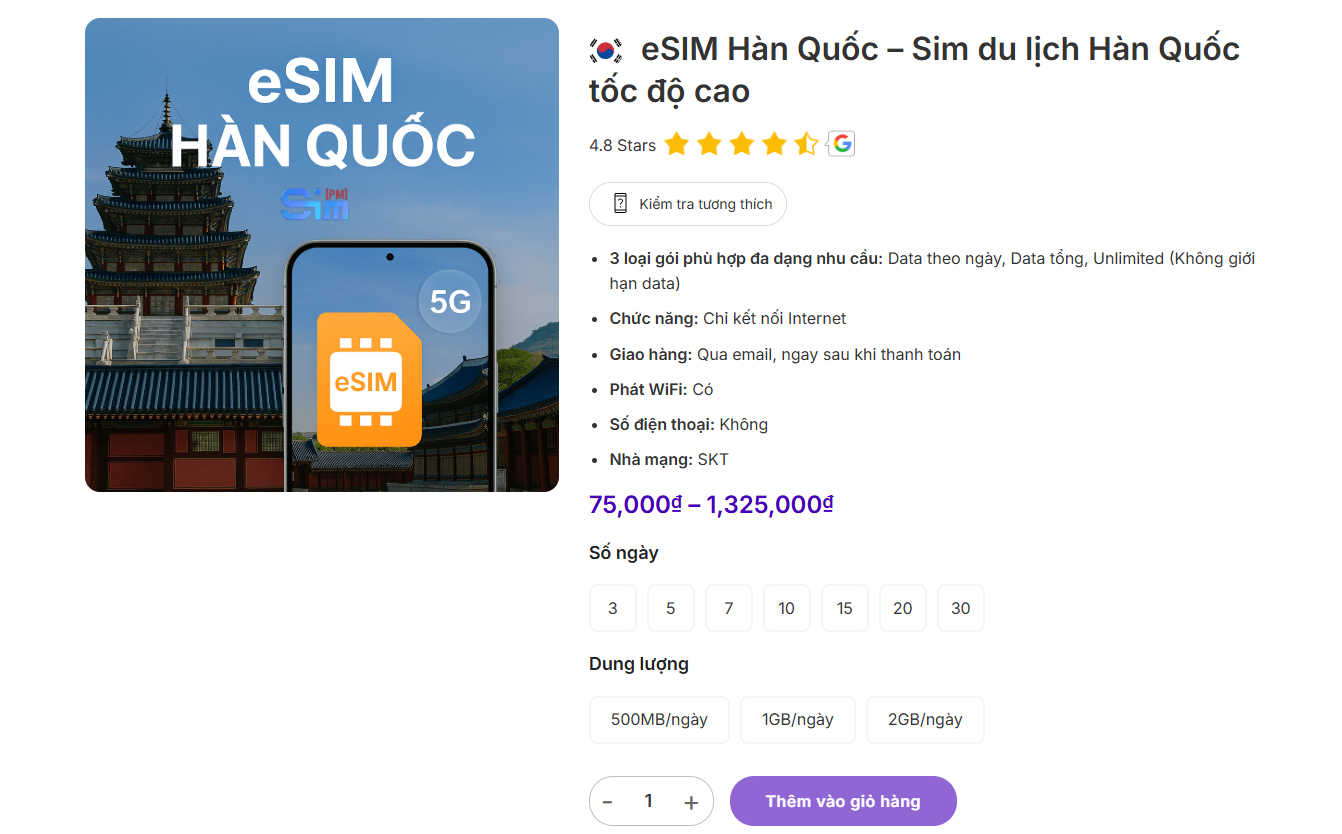
Among today’s providers, SimPM is a trusted choice for many users when they need a travel eSIM. SimPM offers eSIMs for more than 200 countries and territories, suitable for a wide range of international travel needs. Representative eSIM plans include China eSIM, Thailand eSIM, Japan, South Korea, Germany, France, and many other popular destinations.. This makes it easy for users to choose a suitable eSIM plan for their itinerary without having to buy multiple different SIMs.
One standout advantage of SimPM is its fast and convenient QR code delivery process. After payment is completed, the eSIM QR code will be sent directly by email, allowing you to proactively set up the eSIM on iPhone 12 before your trip or right when you arrive. This method is especially suitable for those who travel frequently, need internet access immediately, and do not want to waste time looking for a physical SIM at the airport or at local stores.
In addition, SimPM also provides technical support during the eSIM setup and usage process. If you have trouble scanning the QR code, entering activation details, or connecting data, users can receive detailed guidance for timely troubleshooting. This support makes it easier to use eSIM on iPhone 12, even for first-time eSIM users.
In terms of cost, SimPM’s eSIM plans are reasonably priced and flexible, meeting needs from short trips to long-term use. Users can choose the data allowance and usage period that suit them, avoiding waste and keeping connection costs under control throughout the journey.
Overall, choosing travel buy eSIM from SimPM helps users feel secure about quality, convenience, and support when needed. Combined with knowing how to use eSIM on iPhone 12, you can fully enjoy your trip without worrying about connection interruptions or unexpected costs.
In short, eSIM is a modern, convenient connectivity solution and is completely suitable for iPhone 12 if you use the correct device version and follow the proper setup and configuration process. Once you understand how to use eSIM on iPhone 12 and choose an eSIM that fits your personal needs, especially a travel eSIM, you can proactively stay connected to the internet and enjoy both your work and your journey to the fullest without relying on a traditional physical SIM anymore.