eSIM on iPhone XS Max: A Complete A–Z Guide

eSIM on the iPhone XS Max allows you to use a physical SIM and an eSIM at the same time, making it easier to manage phone numbers and mobile connectivity more flexibly. This feature is suitable for users with multiple numbers or those who travel frequently. This article will help you understand whether the iPhone XS Max supports eSIM, the usage requirements, and how to set it up correctly for effective eSIM use.
Does the iPhone XS Max support eSIM?
The answer is yes. The iPhone XS Max is one of the first iPhone models from Apple to feature eSIM technology, allowing users to use a physical SIM and an eSIM on the same device at the same time.
Specifically, the iPhone XS Max works on the 1 physical SIM + 1 eSIM model, meaning you can use two phone numbers at once for calls, texts, and Internet access. This is especially useful for people who need to separate personal and work numbers, or keep their main SIM to receive OTPs while using an eSIM for data.
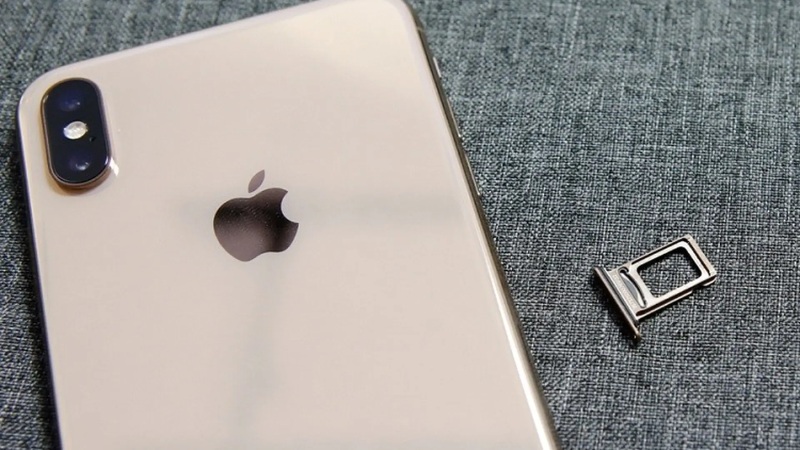
As for device version, the international iPhone XS Max fully and stably supports eSIM. Meanwhile, a locked version can only use eSIM after it has been fully unlocked and meets the carrier’s requirements. If the device has not been unlocked or is carrier-restricted, the eSIM may not install or may not work properly.
In practice, eSIM on the iPhone XS Max is used for many different purposes such as:
- Using an additional secondary number alongside the main SIM
- Using a data eSIM when traveling or on business trips
- Keeping the physical SIM for important calls and SMS
Today, iPhone XS Max users in Vietnam can use Vietnam eSIM to make calls, receive SMS, and access stable mobile data without needing to install an additional physical SIM.
Requirements for using eSIM on the iPhone XS Max
To avoid installation errors and ensure the eSIM on the iPhone XS Max works stably, users need to meet all of the following requirements:
- Suitable iOS version: The iPhone XS Max needs to run iOS 12.1 or later. If the device is running an iOS version that is too low, the eSIM option will not appear in settings and you will not be able to add an eSIM.
- The device is an international version or has been fully unlocked: The international iPhone XS Max fully supports eSIM. On a locked device, eSIM only works once it has been completely unlocked; otherwise, the eSIM may not activate or may have signal issues.
- The eSIM must be compatible with the iPhone XS Max: The carrier or eSIM provider must support the XS Max model. Some eSIMs with device or iOS version restrictions will not be installable.
- Internet connection is required when adding the eSIM: During setup, the iPhone XS Max must have WiFi or mobile data to download the eSIM profile to the device.
- Common cases where eSIM cannot be installed on the XS Max
- iOS has not reached the required version
- The device is still carrier-locked
- The eSIM QR code is scanned incorrectly or is expired and reused
- The eSIM does not support the iPhone XS Max model
- Unstable Internet connection during setup
Carefully checking the conditions above before adding an eSIM will help you avoid issues and use eSIM on the iPhone XS Max stably from the start.
Steps to integrate eSIM on the iPhone XS Max
The section below explains how to add an eSIM on the iPhone XS Max in the correct process, helping new users operate easily and minimize errors during setup.
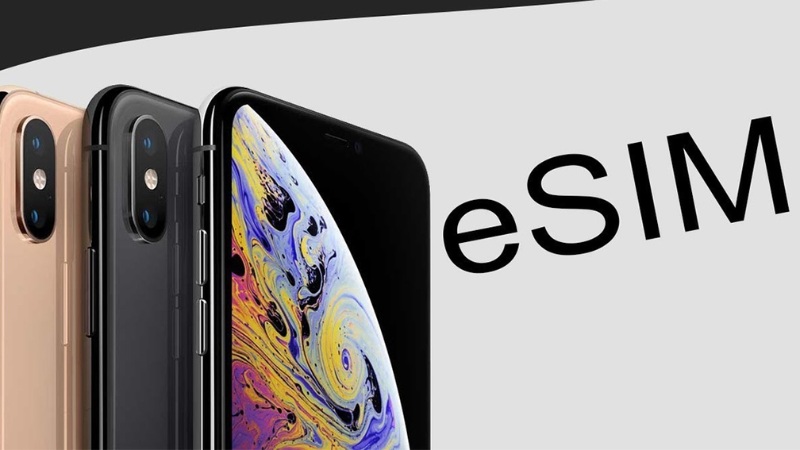
Before you begin, you should quickly check the following:
- The iPhone XS Max has been updated to a compatible iOS version
- The device is connected to WiFi or has stable mobile data
- An eSIM QR code or eSIM information from the carrier/provider is available
- The phone battery has enough charge to avoid interruptions during setup
How to add an eSIM using a QR code
This is the most common and fastest way to integrate eSIM on the iPhone XS Max:
- Open Settings on the iPhone XS Max
- Select Cellular
- Tap Add Cellular Plan
- The camera will activate, then scan the provided eSIM QR code
- Wait for the system to download the eSIM profile and complete the setup process
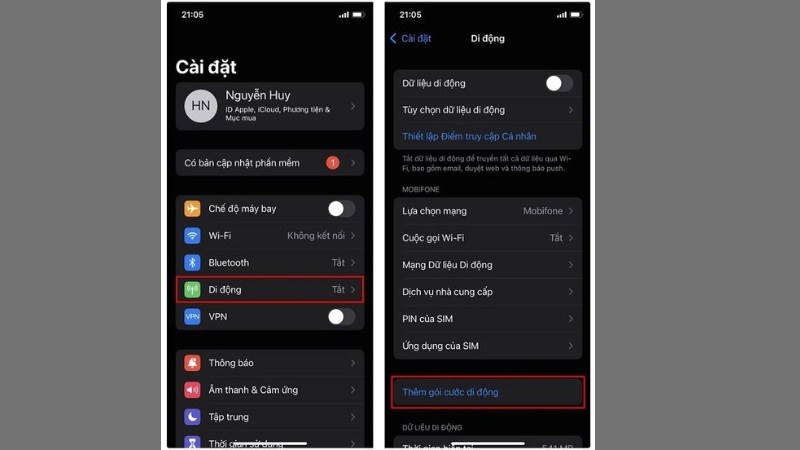
After a successful scan, the eSIM will be added to the device and ready to configure for use.
How to add eSIM manually
If you cannot scan the QR code, you can add the eSIM manually:
- Go to Settings > Cellular > Add Cellular Plan
- Choose the option Enter the details manually > and fill in the full information in 2 for the “SM-DP+ Address” and “Activation Code” fields.
- Enter all eSIM parameters as instructed by the provider
- Confirm so the system can proceed with eSIM activation
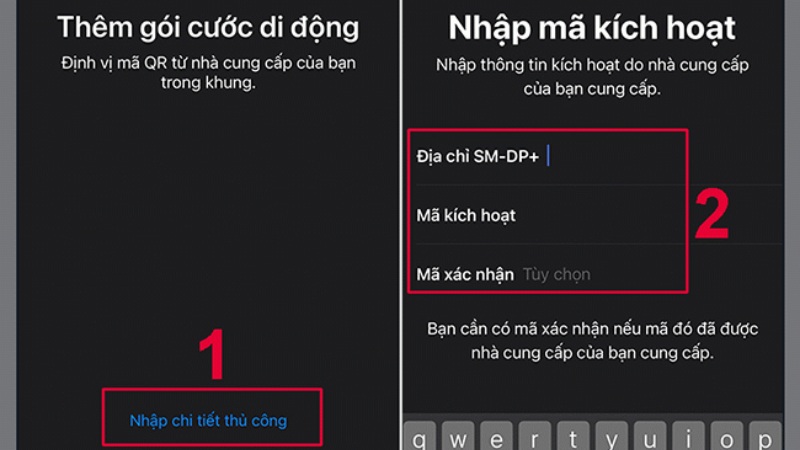
This method is suitable when the camera has an issue or the QR code cannot be used.
Set the default SIM for calls and data
After adding the eSIM, the iPhone XS Max will ask you to choose which SIM to use for each function:
- Choose the SIM used for calls and SMS
- Choose the SIM used for mobile data
- You can set the eSIM as the primary SIM or use it only for Internet
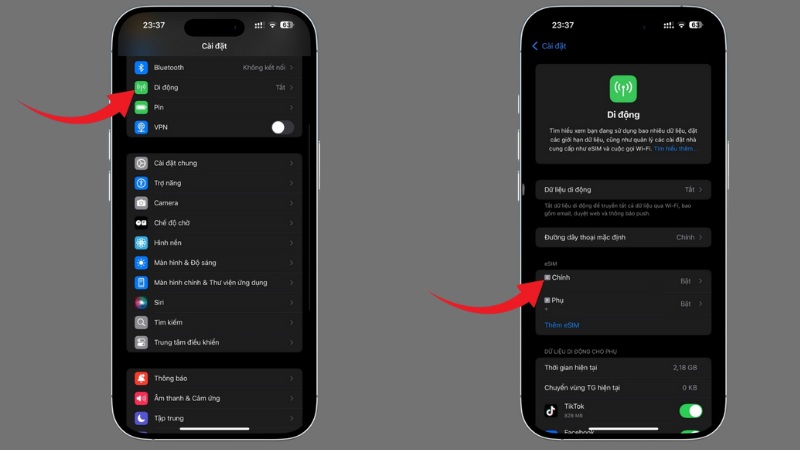
Setting it up correctly from the start helps avoid confusion when using two SIMs at the same time.
Check whether the eSIM is working
To make sure the eSIM on the iPhone XS Max is active:
- Go to Settings > Cellular and check whether the eSIM is displayed
- Observe the signal bars and network status
- Try turning on mobile data or making a call (if the eSIM supports calls)
If the eSIM shows all information and connects normally, the integration process is complete.
Some basic actions for first-time eSIM users
After successful setup, users need to get familiar with some basic actions to use eSIM on the iPhone XS Max effectively and avoid confusion when using two SIMs at the same time.
How to switch between the physical SIM and eSIM
The iPhone XS Max allows you to flexibly choose which SIM to use:
- Go to Settings > Cellular
- Choose the physical SIM or eSIM
- Set the SIM for calls, messages, or data
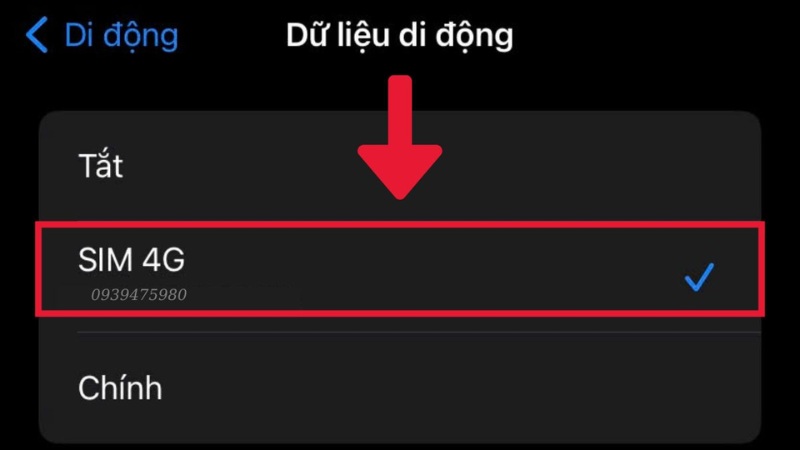
You can switch at any time without removing the SIM.
Choose the eSIM as the data SIM
If you want to use the eSIM for Internet:
- Go to Settings > Cellular > Cellular Data
- Choose the eSIM as the data SIM
- Keep the physical SIM for calls and SMS
This setup is very common when using a travel eSIM.
Turn the eSIM on/off when not needed
When you do not need it, you can temporarily turn off the eSIM:
- Go to Settings > Cellular
- Choose the eSIM you want to manage
- Turn off the eSIM activation option
Turning off the eSIM helps save battery and avoid unnecessary connections.
Rename the eSIM for easier management
To avoid confusion when using multiple SIMs:
- Go to Settings > Cellular
- Choose the eSIM
- Rename the SIM label according to its purpose, such as “Data”, “Travel”, “Work”
This helps you manage your SIMs more clearly during use.
Use 2 SIM simultaneously on iPhone XS Max
The iPhone XS Max supports using 1 physical SIM and 1 eSIM at the same time:
- Receive calls and messages on both SIMs
- Use one SIM for calls, the other for data
- Switch flexibly depending on your needs
For people who frequently travel within Asia, eSIM helps keep the main SIM to receive OTPs while using Asia travel eSIM for data when traveling to countries such as Thailand, Singapore, South Korea or Japan.
Notes when adding an eSIM on the iPhone XS Max
To use eSIM on the iPhone XS Max stably and avoid misunderstanding the device’s capabilities, users need to clearly understand some important notes below.
- Only one 1 eSIM active at a time: The iPhone XS Max only allows one eSIM to be activated at a time. You cannot have two eSIMs active simultaneously, even though the device can store multiple eSIMs in memory.
- Can store multiple eSIMs but not activate them at the same time: The iPhone XS Max allows you to store multiple eSIM profiles for use alternately. However, users need to turn off the old eSIM before activating another one.
- Do not delete the eSIM if you do not have a plan to reinstall it: When you delete an eSIM, the eSIM profile is completely removed from the device. If you no longer have the QR code or are not reissued an eSIM, you will not be able to restore the deleted eSIM.
- Notes when resetting the device or updating iOS: Restoring factory settings or updating iOS may affect the eSIM if not done correctly. Before resetting the device, users should back up data and check the option to keep the cellular plan.
- Distinguish between data-only eSIM and eSIM with a phone number: A data-only eSIM is only for Internet access and does not support calls or SMS. Meanwhile, an eSIM with a phone number can use all functions like a physical SIM.
When traveling across multiple countries in the same region, users should choose a regional eSIM such as Europe eSIM so the iPhone XS Max can connect to the Internet seamlessly in multiple countries without having to switch SIMs repeatedly.
FAQs – Frequently asked questions about eSIM on the XS Max
When learning about and using eSIM on the iPhone XS Max, many users often have questions related to how many eSIMs can be used, SMS receiving capability, using eSIM abroad, or transferring eSIM to another device. If not properly understood, these questions can lead to confusion when installing or using eSIM in practice. Below are common questions that help clarify frequently encountered concerns when using eSIM on the iPhone XS Max.
Question 1: How many eSIMs can the iPhone XS Max use?
The iPhone XS Max can store multiple eSIMs in the device memory for alternating use when needed. However, at any given time, only up to 1 eSIM can be activated, working together with 1 physical SIM. This means you can switch between stored eSIMs, but you cannot activate multiple eSIMs at the same time.
Question 2: Can you use 2 eSIM at the same time on the XS Max?
No. The iPhone XS Max does not support using 2 eSIM at the same time. The device only allows the 1 eSIM + 1 physical SIM model to work simultaneously. If you want to use another eSIM, you need to turn off the active eSIM before enabling the new one.
Question 3: Can the eSIM on the iPhone XS Max receive SMS?
The ability to receive SMS on the eSIM depends on the type of eSIM you are using. With an eSIM that has a phone number, you can receive SMS, OTPs, and calls just like a physical SIM. Meanwhile, a data-only eSIM is only for Internet access and does not support SMS or calls.
Question 4: Can the eSIM on the iPhone XS Max be used in the US?
Yes. The iPhone XS Max is fully compatible with US eSIM if you choose the right plan that supports this device. This solution is suitable for travel, business trips, or short-term study, helping you get Internet as soon as you arrive without having to buy a physical SIM at the airport.
Question 5: Can eSIM be transferred from the iPhone XS Max to another phone?
It can, but not directly like a physical SIM. When changing devices, the eSIM on the iPhone XS Max is usually deactivated and you need to contact the provider to be reissued a new eSIM. This helps ensure safety and prevents the eSIM from being used unlawfully on multiple devices.
eSIM on the iPhone XS Max is a flexible solution for users who need to use multiple phone numbers or travel frequently. Once you understand the usage requirements, setup process, and important notes, you can fully maximize the benefits of eSIM without encountering errors during use. For short trips such as to South Korea or Japan, pre-installing an eSIM from SimPM before departure helps the iPhone XS Max get Internet as soon as you land and stay connected throughout your trip.