Easy Guide to Using eSIM on iPhone 14 for Beginners

With iPhone 14, eSIM is no longer a technology reserved for tech-savvy users, but has become a popular and convenient connectivity option. However, to use eSIM effectively, users need to understand how to install, set up, and manage it properly. SimPM will guide you in detail on how to use eSIM on iPhone 14, helping you stay connected anytime, especially when traveling for business or going abroad.
What is eSIM and why should iPhone 14 use eSIM?
eSIM is an electronic SIM card integrated directly into the device’s hardware, so there is no need to insert a physical SIM card. Instead of removing and inserting a SIM as before, users only need to scan a QR code or enter information from the carrier to activate the plan.
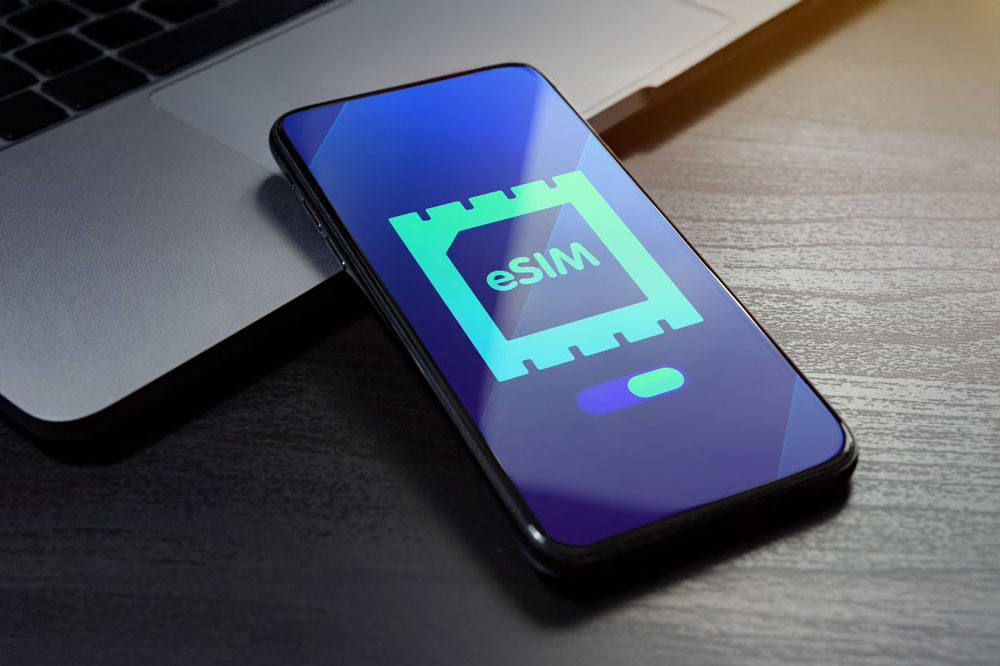
On iPhone 14, eSIM (domestic eSIM and international eSIM) clearly offers advantages such as:
- No SIM slot is needed, reducing the risk of losing or damaging the SIM.
- Easily switch carriers or plans with just a few taps.
- Use multiple phone numbers at the same time, suitable for work and travel.
- Increases security because eSIM cannot be removed from the device.
That is why eSIM has become an ideal choice for iPhone 14 users, especially those who travel frequently or go overseas.
Does iPhone 14 support eSIM?
The answer is yes. The entire iPhone 14 lineup is designed by Apple to support eSIM, including iPhone 14, iPhone 14 Plus, iPhone 14 Pro, and iPhone 14 Pro Max. On these devices, eSIM is not just an additional feature but has become a core mobile connectivity method, reflecting Apple’s long-term direction to gradually eliminate physical SIM cards.
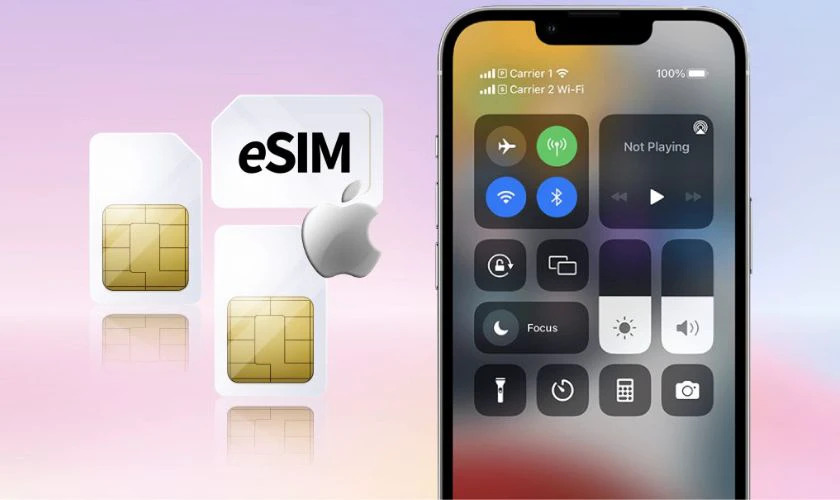
Technically, iPhone 14 can store multiple eSIMs and allow two mobile numbers to be activated at the same time. This makes it easy for users to separate personal and work numbers, or use a separate eSIM for data while traveling without having to remove and insert SIM cards as before. This is also an important foundation for users to apply how to use eSIM on iPhone 14 in a more flexible and safer way in practice.
However, not every iPhone 14 version on the market is compatible with eSIM. iPhone models distributed for mainland China, Hong Kong, and Macao do not support eSIM due to differences in telecom regulations, except for some older lines such as iPhone 13 mini, iPhone 12 mini, iPhone SE 2020, and iPhone XS. Therefore, before buying an eSIM, users should check the device’s origin carefully to avoid confusion.
Requirements before installing eSIM on iPhone 14
To ensure the eSIM installation process on iPhone 14 goes smoothly and minimizes potential errors, users need to prepare a number of technical conditions from the start. Understanding these requirements not only saves time but is also an important foundation for applying how to use eSIM on iPhone 14 in a stable and effective way during use.
iPhone 14 has been carrier-unlocked
The first and most important condition is that iPhone 14 must be in an unlocked state. An unlocked device allows you to use eSIMs from multiple providers without being limited to a fixed carrier. If the iPhone is still carrier-locked, the eSIM may not activate or may only work with limited functionality. Users should check the unlock status before buying an eSIM to avoid unnecessary risks.
iOS version meets technical requirements
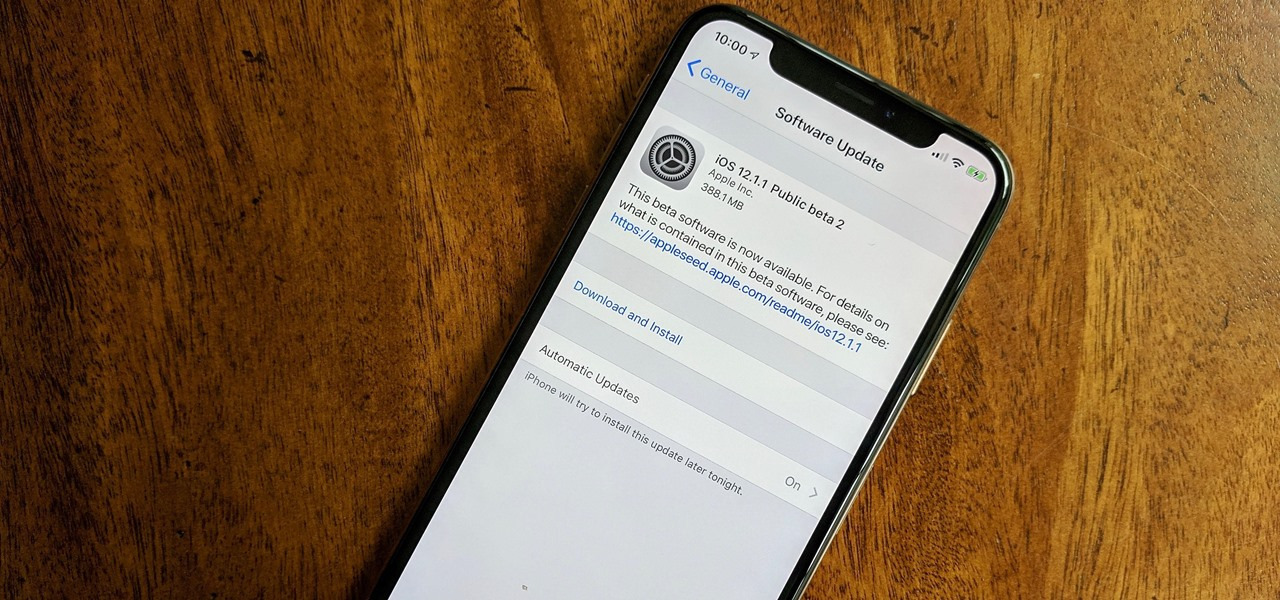
iPhone 14 needs to run iOS 12.1 or later to support eSIM. In practice, newer iOS versions such as iOS 16 or iOS 17 g help manage eSIM better, improve stability, and reduce the chance of errors during activation. Updating iOS before installing an eSIM is a recommended preparation step, especially for new users.
A stable internet connection during installation
During eSIM installation, the iPhone needs an internet connection to download the configuration from the provider’s system. Users should use a stable Wi-Fi network or a mobile network with good speed to ensure the QR code scanning and eSIM activation process is not interrupted. A poor connection can cause the eSIM not to be fully recognized and require reinstallation.
Have a valid eSIM QR code or eSIM information from the provider
A valid QR code or eSIM information is a mandatory requirement to activate eSIM on iPhone 14. After purchasing the eSIM, the provider will send the QR code or configuration information by email. For international travel eSIMs, many people choose to buy from SimPM because they can receive the QR code quickly within 3 to 10 minutes by email, making it convenient to install the eSIM before going abroad.
You can refer to some popular eSIMs such as: China eSIM, Japan eSIM, France eSIM,…
Step-by-step guide to installing eSIM on iPhone 14
To install eSIM on iPhone 14 correctly from the start, you should follow each clear step below. When installed properly, the eSIM will connect stably and you will more easily implement how to use eSIM on iPhone 14 such as switching data, using two numbers at the same time, or preparing for an overseas trip.
Install eSIM on iPhone 14 using a QR code
Step 1: Open the correct plan addition menu
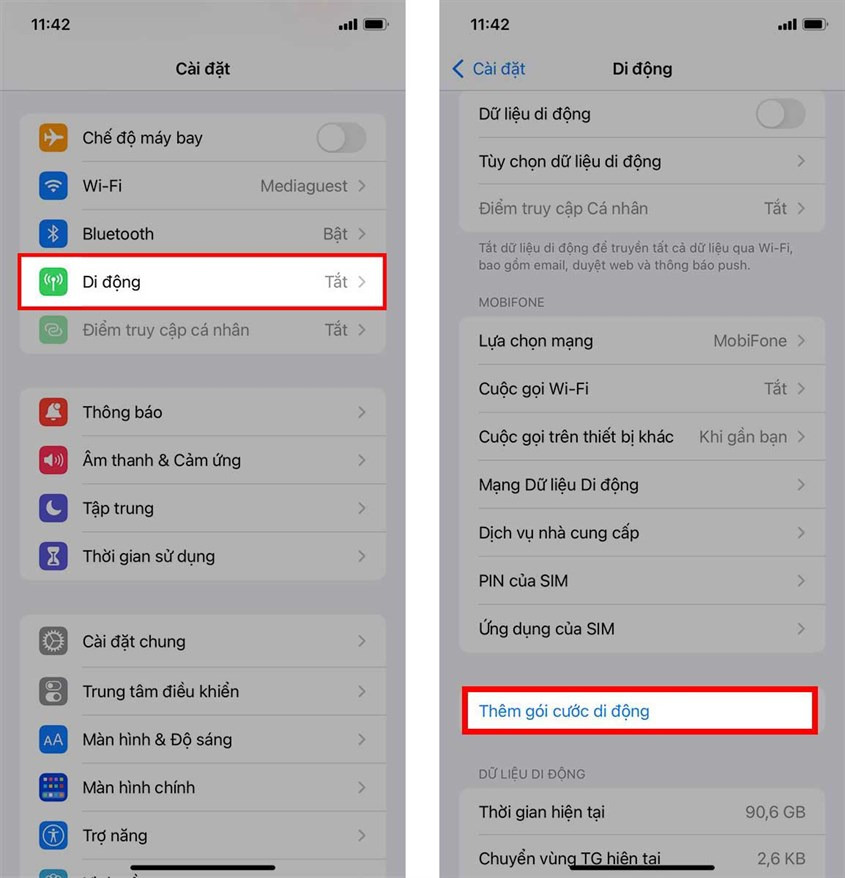
- Go to Settings → select Cellular → tap Add Cellular Plan.
Step 2: Scan the QR code to download the eSIM profile
- Place the eSIM QR code in the scan frame on the screen. The iPhone will automatically recognize it and begin installing the profile.
- If you do not have a QR code, enter it manually: If you do not have a QR code, choose Enter Details Manually → enter these 2 details accurately: SM-DP+ Address and Activation Code. Note that every character must be entered correctly, because even a small mistake may prevent the eSIM from activating.
Step 4: Finish and restart the device
- After the iPhone shows that the plan has been added, you should power off and restart iPhone 14 so the system can refresh the network configuration and the eSIM can work stably.
Install eSIM using eSIM Quick Transfer
This option is suitable when you switch from an older iPhone to iPhone 14 and want to transfer your current number to eSIM. This feature works on iOS 16 and later.
Step 1: Go to the cellular data section on iPhone 14
- Go to Settings → select Cellular Data.
Step 2: Start eSIM setup
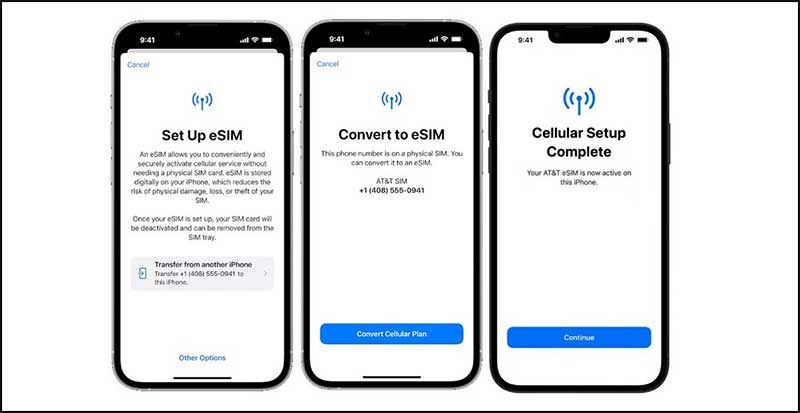
- Tap Add Cellular Plan or Set Up eSIM.
Step 3: Choose transfer from nearby iPhone
- Choose Transfer from Nearby iPhone. Make sure the old iPhone is nearby and has the required connection enabled according to the on-screen instructions.
Step 4: Choose the plan you want to transfer and follow the instructions
- Select the correct cellular plan you want to transfer → confirm the displayed steps to complete.
See more: Does iPhone 8 Plus support eSIM? Quick check guide for iPhone
How to use eSIM on iPhone 14 after installation
After the eSIM has been successfully installed, proper setup and use will directly determine your daily connectivity experience. iPhone 14 allows users to control eSIM very flexibly right in the settings. Understanding the steps below will help you apply how to use eSIM on iPhone 14 effectively and stably in any situation.
How to choose eSIM as the primary mobile data
To use the eSIM for internet access, you need to set the eSIM as the primary mobile data source. Go to Settings, select Cellular, then tap Cellular Data and choose the desired eSIM. When set as the primary data line, all internet access activities such as browsing, maps, and social media apps will use data from the eSIM.
How to turn eSIM on or off when needed
iPhone 14 lets you turn each eSIM on or off separately without affecting other plans. Go to Settings → Cellular, select the eSIM in use, then turn it on or off as needed. Turning off the eSIM when it is not needed helps save battery and avoid background data usage, especially after the trip has ended or when you no longer need that eSIM plan.
How to rename an eSIM for easier management
When using multiple plans, naming the eSIM is a very important step. In the Settings → Cellular, you select the eSIM and edit the label according to its purpose, for example “Personal,” “Work,” or “Travel.” Clear naming makes it easier to switch between plans and reduces confusion when choosing mobile data or making calls.
Tips for buying and using eSIM on iPhone 14 when traveling abroad
To keep the eSIM working stably and avoid unexpected issues during the trip, users need to prepare carefully from the buying stage to how they use it. The tips below are drawn from real-world travel eSIM deployment and will help you apply how to use eSIM on iPhone 14 safely and effectively.
Buy eSIM from a reputable source

The eSIM provider directly determines connection quality and the level of support when issues arise. Users should choose reputable providers with clear information about coverage, data allowance, and validity period. Many people choose to buy international eSIMs at SimPM because this platform offers eSIMs for most destinations worldwide, provides technical support during use, sends the QR code quickly by email, and allows direct purchase on the website with many flexible data plans to suit different needs.
Always check compatibility before buying
Before paying for an eSIM, you should carefully check whether your iPhone 14 is compatible with eSIM in the country you are going to. This includes confirming that the device is unlocked, supports eSIM, and is compatible with the carrier bands at your destination. Checking in advance helps avoid the situation wherebuy eSIM it cannot be used once you are abroad.
Keep the QR code and eSIM information carefully
After purchasing an eSIM, the QR code and configuration information are usually sent by email. Users should save this email or take a photo of the QR code as a backup. If you need to reinstall the eSIM or change devices, having the QR code ready will help you stay in control and avoid connectivity interruptions.
Install the eSIM before going abroad
One important tip is to install the eSIM while still in your home country, where the internet connection is stable. You can complete the installation but only activate data when you arrive in the country where you need to use it. This approach helps you avoid technical issues at the airport or after going abroad, while ensuring the eSIM is ready to work as soon as needed.
eSIM is gradually becoming a mobile connectivity method that fits modern usage trends on iPhone 14. eSIM is especially useful for users who travel frequently or go abroad. When properly prepared, users can apply how to use eSIM on iPhone 14 proactively, stably, and in a cost-optimized way throughout the usage period.