Will Reset All Settings Remove eSIM? Don’t Reset Before Reading This

Many people worry that resetting all settings on their phone could remove the eSIM, especially when using a travel eSIM abroad. So, does resetting all settings delete the eSIM? What is the safe procedure, and what should you pay attention to before resetting? The article below will help you understand it correctly and avoid unnecessary risks.
Does resetting all settings delete the eSIM?
Many users worry about whether resetting all settings will delete the eSIM; the correct answer is NO. According to technical experts, the Reset All Settings operation does not affect the eSIM on the phone.
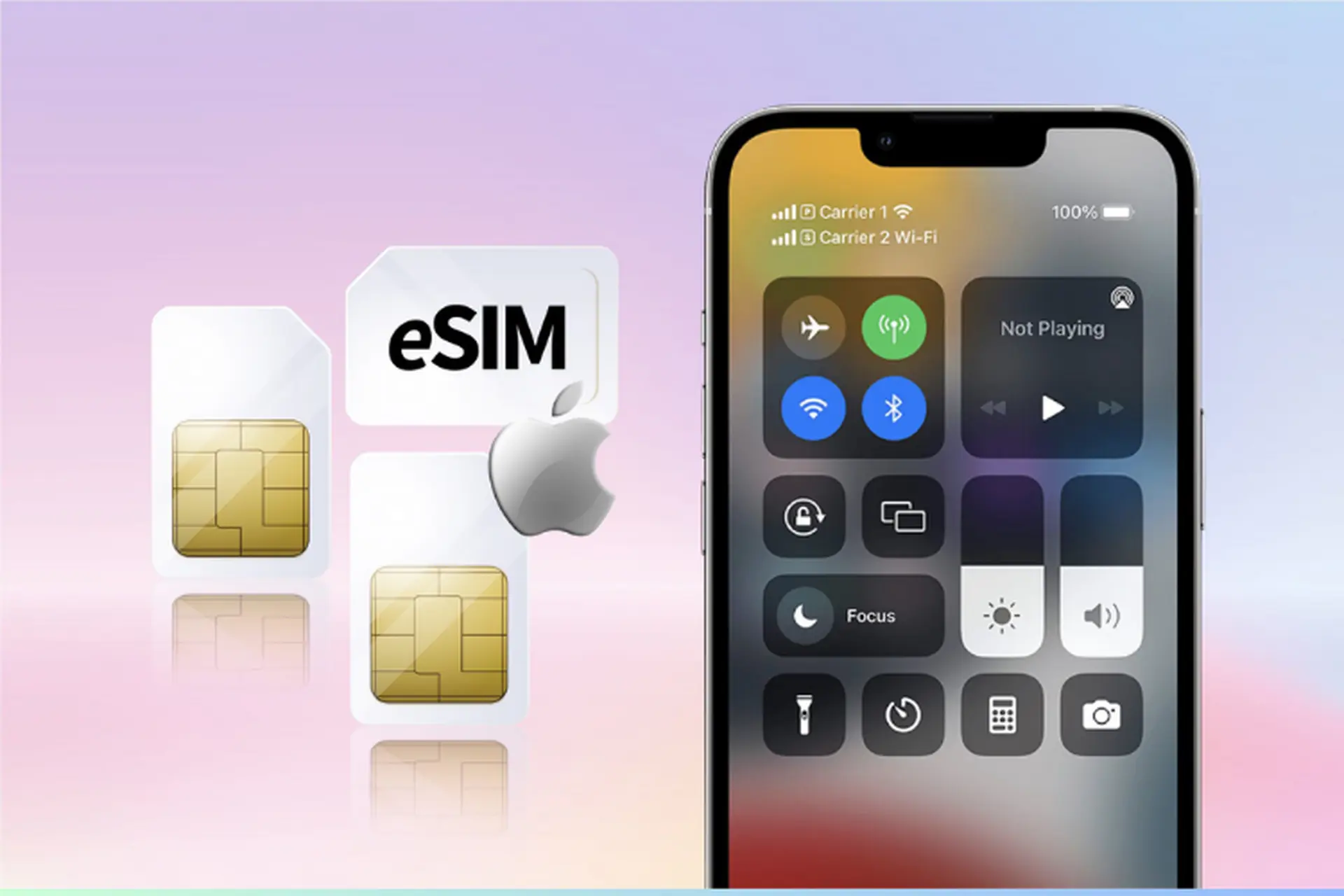
This feature only returns system settings such as sound, screen brightness, privacy, saved Wi‑Fi passwords, Bluetooth configuration, etc. to the manufacturer’s original default state. The reset process does not erase personal data (photos, messages, apps) and does not interfere with the eSIM or mobile plan safely stored on the eUICC chip. Therefore, after resetting all settings, the eSIM remains unchanged and continues to work normally with the subscriber number and data plan currently in use.
Distinguishing between “reset all” and “erase all content”
To avoid fixing a minor issue but accidentally losing data or the eSIM, you need to clearly distinguish the two most common reset modes on phones below
Reset All Settings
This is a safe option when the device has minor configuration-related issues. This operation only restores system settings to the manufacturer’s original state, similar to “refreshing” the phone’s settings. The most important point is that personal data such as photos, contacts, messages, and apps are kept intact, and the eSIM is completely unaffected and continues to work normally.
Erase All Content and Settings
This is a factory reset command that returns the phone to a completely blank state as if it were newly purchased. All data on the device will be erased. During this process, the system will display a prompt asking whether you want to delete the mobile plan (eSIM). If you choose “Erase All,” the eSIM will be completely removed from the device and cannot be used again unless it is reactivated from scratch.
See more: Does factory reset delete the eSIM? Guide to checking & handling
How to reset settings on iPhone while keeping the eSIM
On iPhone, resetting settings is quite simple but requires you to choose the correct option to avoid accidentally losing the eSIM. Many users often confuse the reset modes, leading to unnecessary eSIM deletion. Therefore, follow the steps below correctly to make sure the eSIM is kept after resetting settings.
- Step 1: Go to Settings → choose General.
- Step 2: Tap Transfer or Reset iPhone.
- Step 3: Select Reset → then continue by choosing Reset All Settings.
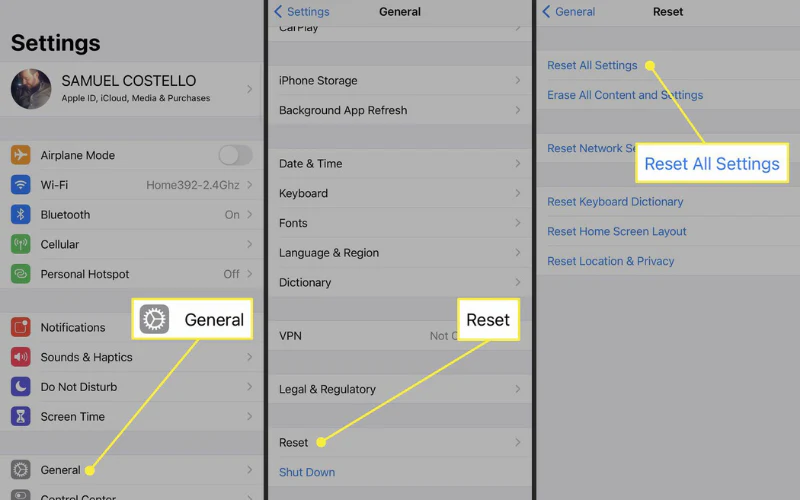
If you are forced to choose “Erase All Content and Settings,” pay special attention to the confirmation screen. When the iPhone displays an option related to the mobile plan, you need to choose “Keep Mobile Plan” to ensure the eSIM is not deleted.
How to factory reset Android without losing the eSIM
For popular Android phones such as Samsung, Google Pixel, and some other newer Android devices, manufacturers have built in an eSIM protection option during the factory reset process. However, if users do not pay attention when confirming the reset, the eSIM may still be deleted unintentionally. To factory reset while keeping the eSIM, follow these steps:
- Step 1: Go to Settings → choose General management → tap Reset.
- Step 2: Select Factory data reset to begin the device reset process.
- Step 3: Before confirming the reset, the system will display a summary screen of the data that will be erased. Here, you need to carefully look for the “Erase eSIMs” option.
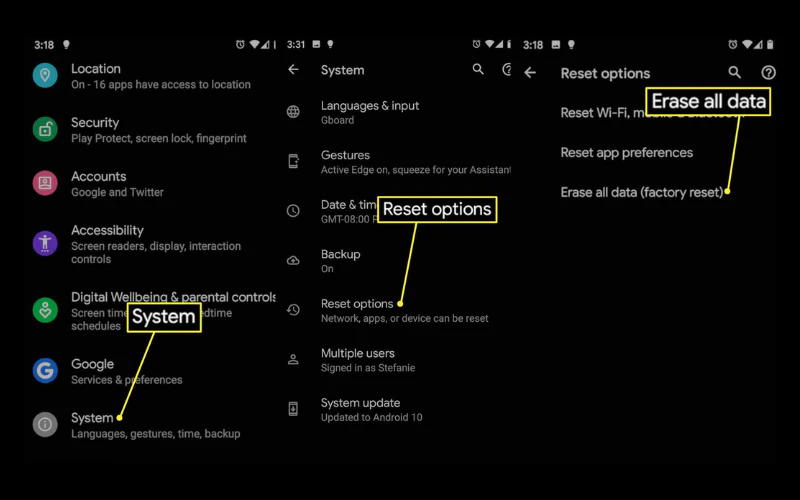
Make sure you do not check “Erase eSIM” when factory resetting. If you leave this option unchecked, the eSIM will not be deleted and will still work normally after the phone restarts. Conversely, if you select “Erase eSIM,” all eSIM information will be deleted and you will have to reactivate the eSIM from scratch or contact the provider for support.
What should you do if you accidentally delete the eSIM while abroad?
Losing internet connectivity while abroad can cause many inconveniences, especially if you accidentally choose “Delete mobile plan (eSIM)” instead of simply resetting settings. In this case, stay calm and follow the steps below one by one to restore connectivity as quickly as possible:
- Find a stable Wi‑Fi connection:Use Wi-Fi at your hotel, airport or cafe to access email and contact your eSIM provider.
- Check the confirmation email: Find the eSIM QR code that was previously sent. Many travel eSIM plans allow you to scan the old QR code again if the plan is still valid and has not been transferred to another device.
- Contact support: Contact the provider directly to check the plan status and quickly reissue a new QR code.
- Limit further manual actions: If the old code cannot be activated, do not try repeatedly to avoid being locked out. Wait for instructions from support to handle it properly.
In unexpected situations while traveling abroad, choosing a reputable eSIM provider that offers 24/7 support like SimPM will help you stay connected throughout your trip, ensuring continuous internet access for work, communication, and essential services.
Tips for fixing eSIM network issues without resetting your phone
Before deciding to reset all settings, you can try some simple but highly effective tips that can resolve up to 90% of common connectivity issues:
- Turn Airplane Mode on/off : Turn on Airplane Mode for about 15 g seconds, then turn it off, forcing the phone to disconnect and register again on a new base station.
- Restart the phone: Clear the cache, end conflicting background processes, and refresh the network management system.
- Check Data Roaming: For a travel eSIM, make sure this feature is enabled to access the internet.
- Select network manually: If the network is still unstable, go to Network Settings → Network Selection and manually choose the carrier with the strongest signal.
- Update carrier settings:Go to Settings → General → About, and update if there is a new notification to fix old configuration errors.
Important things to note before resetting your phone
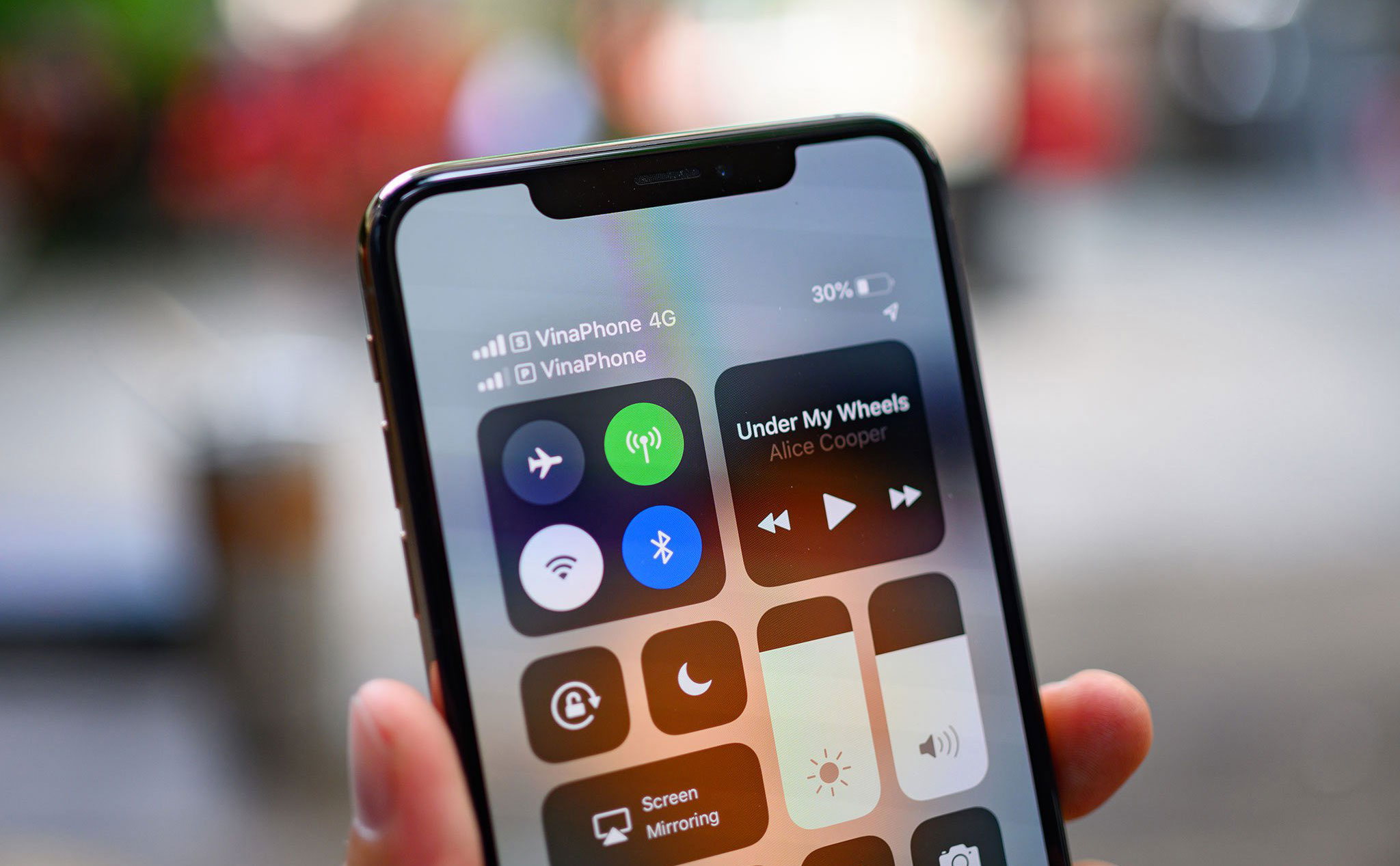
Resetting your phone, in any mode, always requires absolute caution to avoid unnecessary trouble, especially the risk of losing the eSIM or communications. Before proceeding, remember the following 5 important checks:
Always back up the eSIM QR code to another device
This is the most important note. Do not just save the QR code image on the phone you are resetting, because if you choose “Erase All Content,” the image will also be lost. Send the QR code to your email, save it on Google Drive, iCloud, or use another device to take a photo of it. This gives you a ready “key” to scan again and restore the eSIM if you accidentally perform the wrong action.
Check the internet connection
All authentication, sync, and eSIM reactivation steps after resetting require a stable Wi‑Fi connection. Never reset when the signal is weak or there is no network, because losing the connection midway may cause the eSIM setup to fail, forcing you to contact the carrier or a reputable provider like SimPM for manual handling.
Read each system prompt carefully
The most common mistake is tapping “Agree” or “Continue” too quickly. The system displays important prompts such as: “Do you want to keep the mobile plan?” or “Erase all eSIMs?” Take a few seconds to read carefully, because just one wrong tap will immediately disable the eSIM.
Remember your login account and password
After resetting, the phone usually requires you to sign back into iCloud (iPhone) or a Google Account (Android) to verify ownership. If you forget the password and Find My iPhone is enabled, the device may fall into Activation Lock, preventing you from accessing any features, including the eSIM.
Fully charge the phone before resetting
The process of resetting settings or performing a factory reset may take 5 – 15 minutes depending on the data on the device. Make sure the battery is above 50% or that the phone is plugged in. If the device powers off midway, it may cause serious software errors, get stuck on the logo, or damage the eSIM management chip (eUICC).
We hope this article has helped answer the question “Does resetting all settings delete the eSIM?” Understanding the technical details will help you stay in control of your device and maintain a stable connection throughout your trip. If you still have questions or are having trouble setting up your eSIM while traveling, don’t hesitate to contact SimPM. Our technical team is always ready to support you 24/7, helping you handle any issues that arise so your journey stays complete.