Does a Factory Reset Delete eSIM? Check and Fix It

When a phone has system errors, runs slowly, or needs to be wiped before selling, many people choose a factory reset to return the device to its original state. However, with the growing popularity of eSIM today, the biggest question is: does a factory reset delete eSIM? And if it does, can it be restored or does it need to be activated again? This article will definitely help answer that question! It also includes instructions for checking, reactivating, troubleshooting common issues, and important notes for eSIM users.
Does a factory reset delete eSIM?
A factory reset can delete eSIM, but not always. Whether the eSIM is removed depends on the device type, operating system, and the reset option the user chooses.
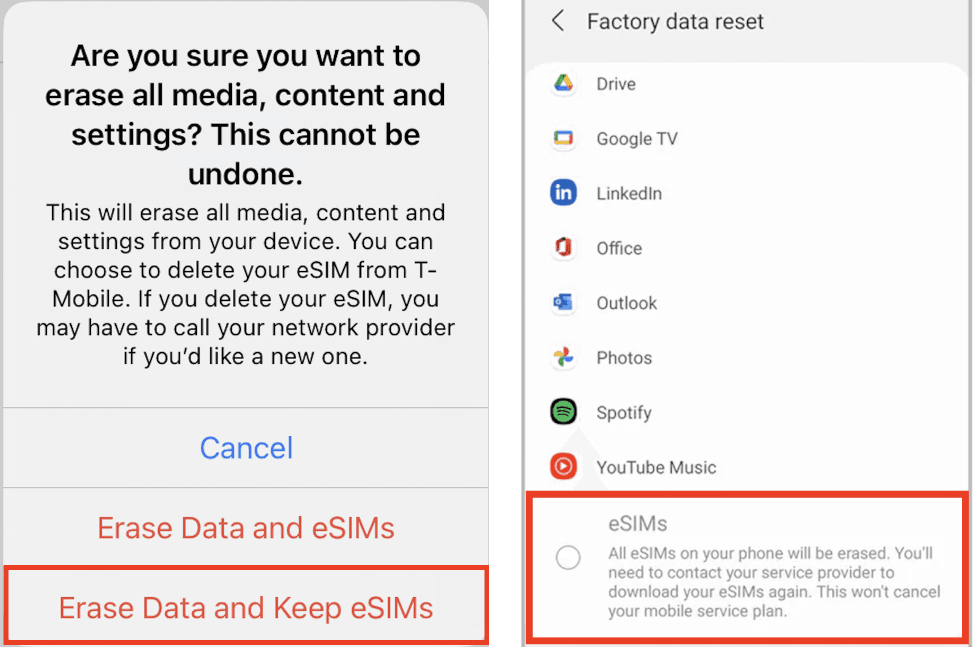
iPhone: a normal reset (Erase Settings) usually does not delete eSIM, but “Erase All Content & Settings” can delete the eSIM profile.
Android (Samsung, Xiaomi, Pixel, Oppo…): in most cases, a full data reset will also delete the eSIM.
What is a factory reset? What happens when you factory reset
Factory Reset is the action of returning a smartphone to a state almost like when it first left the factory. All personal data, installed apps, custom settings, and temporary files will be completely erased so the device runs more stably, more lightly, and no longer has software conflicts or settings errors. This is a common measure when the phone is slow, has software issues, is stuck on the logo, or before selling/giving away the phone.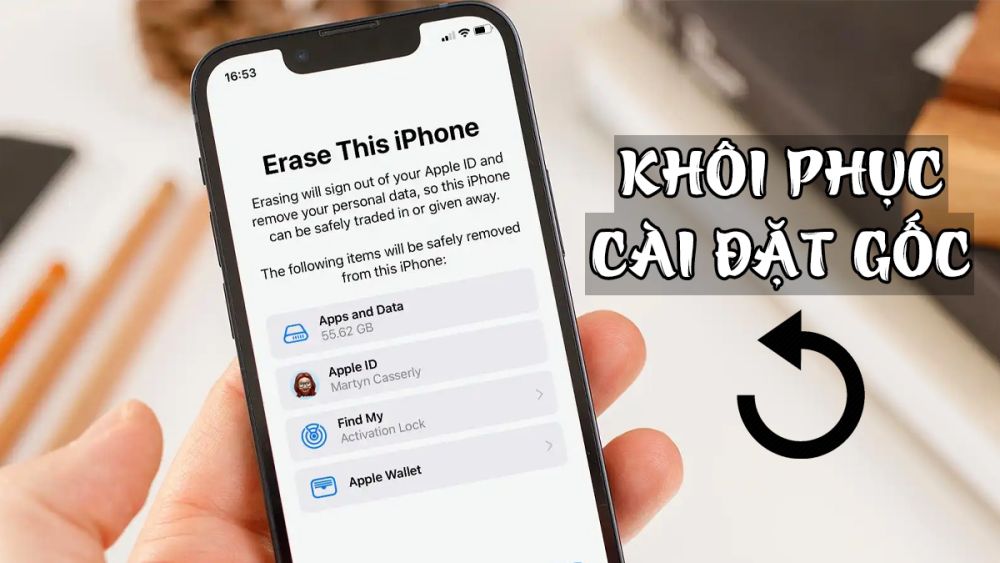
What data does a factory reset delete?
When performing a Factory Reset, the phone will erase data related to the User Data Storage area, including:
Personal data in internal storage
Photos, videos, downloaded files, audio recordings, documents, personal folders
Contacts if saved directly on the phone and not synced
SMS, MMS messages if not backed up
Apps and app data
Apps installed from App Store/CH Play
Game data (if not synced to the cloud)
Login tokens, cookies, custom information
System and interface settings
Theme, wallpaper, font, icon layout
Wi-Fi, Bluetooth, VPN settings
Passwords, Touch ID/Face ID (will need to be set again)
Login accounts
Google, Apple ID, Samsung Account, Mi Account…
Email accounts, OTT app accounts (Zalo, Messenger…)
Cache and temporary data
Junk files, log files, temporary files… → helps the phone run lighter and smoother
In short, the part deleted during reset is the part in the Data/User Partition – meaning it is not related to hardware or system-managed security data.
What data is not deleted after a reset?
Some components are not deleted during a reset, including:
Operating system & firmware: iOS/Android
Required system apps
Activation locks & device security information: Find My iPhone, FRP Lock
Hardware information: IMEI, Serial Number
This data belongs to the system area, not the user data area, so it is not affected.
Where is eSIM stored?

eSIM is not stored in the photo/video/app area like user data. eSIM is stored as a carrier-issued profile and lies in a separate area called Secure Element or EID-based storage, depending on the device:
Part of the modem/SoC hardware
Part linked to the carrier (carrier provisioning)
Part dependent on the operating system (iOS/Android)
Because eSIM is stored in a special secure area:
A light reset (Reset Settings) usually does not affect this area
A full reset (Erase All Data / Factory Reset) may delete the eSIM profile depending on the device
See also: How to use China eSIM: Setup, Activation & Internet Access
When will eSIM be lost after a factory reset?
Not every factory reset will cause eSIM loss. However, there are many situations where the eSIM profile will be deleted, needs to be reactivated, or must be reissued. These cases are usually related to how the device handles security data and how the reset is performed.
Below are common situations that can cause eSIM to be lost after a factory reset:
Performing a full data factory reset
Reset from Recovery / Wipe Data
Reset before changing phones or switching devices
Reset combined with firmware updates or operating system upgrades
eSIM from international travel apps (Airalo, SimPM, Holafly, Nomad…)
The user manually deletes the eSIM plan in Cellular/Mobile Network
The carrier does not support saving or reissuing eSIM
The device only supports one eSIM profile
The phone has software errors or network configuration conflicts
How to factory reset an iPhone without losing eSIM
iPhone manages eSIM separately from user data, so a factory reset can be performed without losing eSIM if the correct reset type is chosen. To keep the eSIM, the user needs to restart the system rather than erase all device data. Here’s how:
Step 1: Open the Settings app on iPhone.
Step 2: Select General.
Step 3: Scroll down and choose Transfer or Reset iPhone.
Step 4: Choose Reset.
Step 5: Tap Reset All Settings.
After this action, the iPhone will restore system settings such as volume, brightness, keyboard, Wi-Fi passwords, VPN… while keeping the eSIM and other important data unchanged.
How to factory reset an Android without losing eSIM
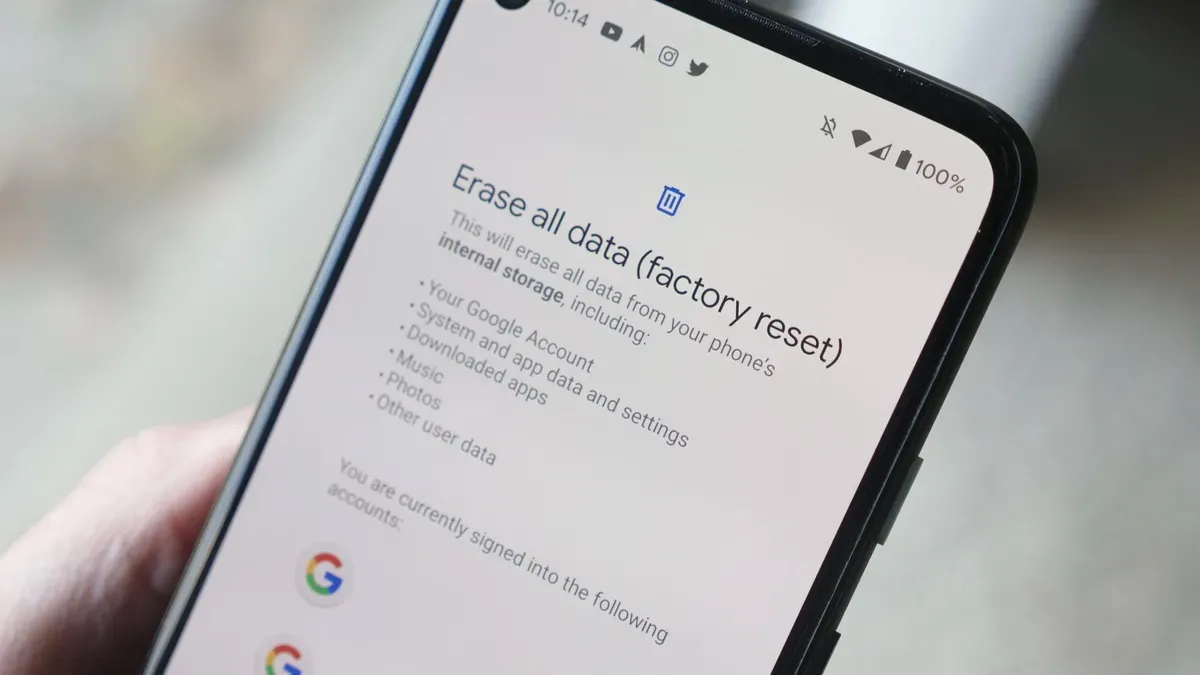
On Android, to avoid losing eSIM when resetting, users should choose reset system settings instead of erasing all data.
Step 1: Open Settings on the device.
Step 2: Go to System or About phone depending on the brand.
Step 3: Select Reset or Reset options.
Step 4: Tap Reset settings / Reset system settings.
Step 5: Confirm to proceed with the reset.
This method only resets system settings such as Wi-Fi, Bluetooth, sound, layout, etc. In most cases, the eSIM is kept intact and continues to work normally after the reset is complete.
How to check whether eSIM was lost after resetting the device
After a factory reset, you can determine whether the eSIM is still there using the following methods:
Check in the Cellular / SIM & Network section: if you still see the carrier name or eSIM plan displayed, the eSIM has not been deleted.
Look at the signal and carrier name in the status bar: if you still have signal or see the carrier name, the eSIM is still active.
Try turning mobile data on and off: if you enable Mobile Data and connect successfully, the eSIM is still there.
Try making a call or sending SMS (with a voice eSIM): if the call or message goes through, the eSIM has not been lost.
Check the status through the carrier’s app or hotline: if the carrier system shows the eSIM plan is still activated, the eSIM is still valid.
What to do if the eSIM is lost after a reset?
Losing eSIM after a factory reset usually happens when the device performs a full data wipe (Factory Reset). If the eSIM has been deleted, you can handle it in the following ways:
Request a new eSIM QR Code from the carrier: use the new QR to scan and activate the eSIM again as before.
Reactivate the eSIM through the carrier app: log in to the app and request eSIM reissue, without needing a QR code or visiting a store.
Go to the carrier’s service point to reissue the eSIM: apply when the eSIM has been completely deleted or there is no QR code / no supported app.
Check whether the data/voice plan is still valid: if the plan is still active, it will continue to work normally after reissue.
For travel eSIM (travel eSIM/international data): most are only activated once; if the eSIM is lost after a reset, it usually cannot be recovered and a new one must be purchased.
For commercial/subscription eSIM: the carrier may reissue it multiple times, but verification or fees may be required.
For app-based eSIM (no QR Code): just log back into the app and request eSIM reactivation.
Check the carrier’s policy on eSIM reissue: each carrier has different rules on the number of reissues, fees, and conditions.
If you are using a travel eSIM and accidentally reset your phone, causing the profile to be lost, the fastest way to get data working again is to buy a new eSIM plan. This avoids waiting for technical support and helps you get connected again in just a few minutes.
On SIMPM, you can choose many international travel eSIM plans with flexible allowances by day or by GB, transparent pricing, fast activation, and secure payment right in the app. Just choose a plan, pay, scan the QR code or auto-activate, and you can use it right away, which is extremely convenient when you’re on the way or just after landing.
See also: Where to buy Japan eSIM safely? A step-by-step guide
Common errors when activating eSIM after a reset
After a factory reset, reactivating the eSIM sometimes encounters errors caused by the device, carrier, or service plan. Below are common errors and corresponding fixes so users can troubleshoot as quickly as possible:
QR Code eSIM not recognized: try taking/scanning it again in a well-lit place or ask the carrier for a new QR code if the old one has expired.
Unable to download the eSIM to the device: check the Wi-Fi/4G connection or try downloading again at another time when the carrier system is stable.
No signal after activation: turn airplane mode on and off or restart the device; if there is still no signal, contact the carrier to reactivate the profile.
Device not supported error: check the carrier’s list of eSIM-supported devices or switch to a compatible device.
eSIM assigned on another device error: ask the carrier to remove the eSIM from the old device first, then activate it on the new device.
Account/plan expired error: renew the plan or top up, then reactivate if the eSIM is prepaid/postpaid.
Carrier app error or system maintenance: wait for the app/carrier to resolve it or activate using the QR Code instead of the app.
Travel eSIM cannot be activated the 2: most are only activated once; if you reset and lose the eSIM, you usually have to buy a new one.
In short, a factory reset does not always delete eSIM. Whether a factory reset deletes eSIM depends on the reset method, device type (iPhone/Android), eSIM type, and carrier policy. If the eSIM is only hidden or the profile has not been deleted, the user does not need to reactivate it. Only when the eSIM has been completely deleted do you need to request a reissue code or activate a new one. Understanding how to handle it will help you feel more at ease when resetting the device while still keeping your eSIM connection.